
How to properly speed up the opening of a WordPress site - Avada theme as an example
It's a known fact that WordPress is more resource intensive on the server, especially with some of the premium WordPress themes, and without proper optimization, the site can open so slow that it can crash.
Friends who do website with heart know that the opening speed has some influence on SEO effect and conversion rate, especially for friends who do paid advertising, speed is money.
Today we will take the Avada theme as an example and explain in detail how to properly optimize a WordPress website.Improve website opening speedThe
1. Remove unnecessary front-end files
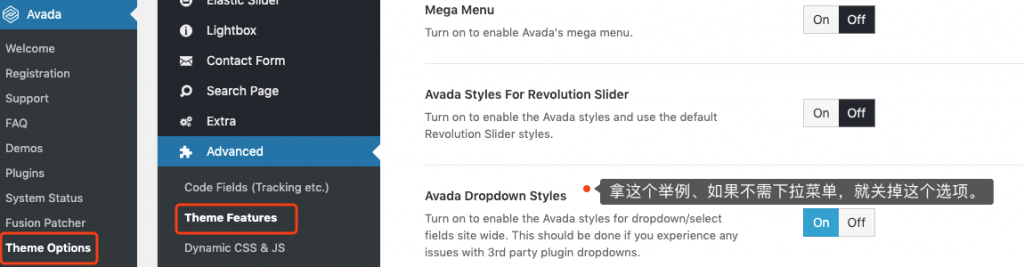
Avada theme provides some options that allow us to disable some unnecessary features to reduce the number of files loaded on the front-end and thus reduce the number of HTTP requests. Here's how to set it up.
In the backend, under the Avada menu, the Theme Options submenu, find the Advanced -> Theme Features, read through each of the descriptions below this option, and if our site does not use a particular feature, turn it off.
| significance | 5 points |
| operational difficulty | 1 |
2、Increase the validity period of browser cache
Browsers can cache static resources such as images, CSS, JavaScript, etc. that do not need to be processed by the server to the website visitor's computer, and the visitor does not have to request the server again when opening the page again, but reads these resources directly from his or her own computer.
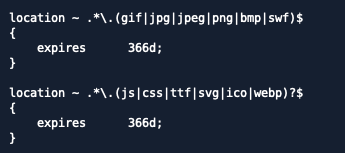
Browser cache has an expiration date, after the expiration date, the browser will re-download the expired resources from the server. For static resources that don't need to be modified often, increasing the cache expiration date can reduce the number of times the resources are re-downloaded.Google recommends setting the expiration date for these static resources to be more than 1 year, so we'll follow this recommendation to set the expiration date.
In the Nginx host configuration file, find the following configuration items, according to the screenshot of the configuration can be. I do not have Apache server, Apache setup method here will not say, need friends can be very easy to Google to or contact the server provider to consult.
| significance | 10 points |
| operational difficulty | 3 |
3, the use of efficient caching plug-ins
If you want to improve the opening speed of WordPress, the use of server caching is an essential step, according to the different locations where the cached content is stored, WordPress cache can be categorized into: memory cache, hard disk cache and database cache three categories. In terms of cache read speed, memory cache > hard disk cache > database cache.
The popular WP Super Cache uses hard disk caching.There are many ways to use WP Super Cache on the Internet, so I won't introduce it here.
Here's a recommendation for a more niche caching plugin - CachifyThis plugin supports saving cache in Memcached, hard disk and database. The plugin also provides a very simple setup option, which prevents the opposite effect from occurring due to incorrect settings.
If the server supports Memcached, it is recommended that you use the Cachify plugin to keep the cache in memory for the best speed optimization. The specific setup method can be referred to:https://en.wpcio.com/cachify/
| significance | 15 points |
| operational difficulty | 5 |
4. Using HTTP2
One of the key principles of optimizing website opening speed for HTTP 1.x is to reduce the number of HTTP requests in order to reduce resource blocking caused by the browser's concurrent request limit. Reducing the number of HTTP requests means merging files, and the problem with merging files is that they get bigger, which leads to increased download times.
How to balance the reduction of download time brought by the reduction of the number of requests and the increase of download time brought by the increase of file size is a very difficult problem. after the popularization of HTTP 2, this problem doesn't exist anymore, one of the important features of HTTP 2 is multiplexing, in short, if you can download 6 files at the same time in HTTP 1.x, the number of files that can be downloaded at the same time in HTTP 2 may be 60 (in this case, it doesn't make much sense to reduce HTTP requests to improve the opening speed of the website). may be 60, in this case, reduce the HTTP request is not very meaningful (appropriate to reduce the number of HTTP requests to improve the opening speed of the site is still helpful, as long as it does not reduce the number of requests and lead to the merger of the file is too large on the line).
Most modern browsers already support HTTP 2, we just need to enable HTTP 2 support on the server, we can use this feature of HTTP 2 to speed up the website. It's easy to do, just add a setting to Nginx as shown below.
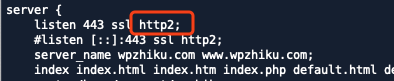
If you don't know how to set it up yourself, you can contact your server provider to set it up. HTTP 2 can save server resources, and I believe that any server provider who pursues it will be very happy to help you set it up.
If you are sure that your server supports HTTP 2, you can turn off the JS Compiler in Avada Settings to speed up site opening.
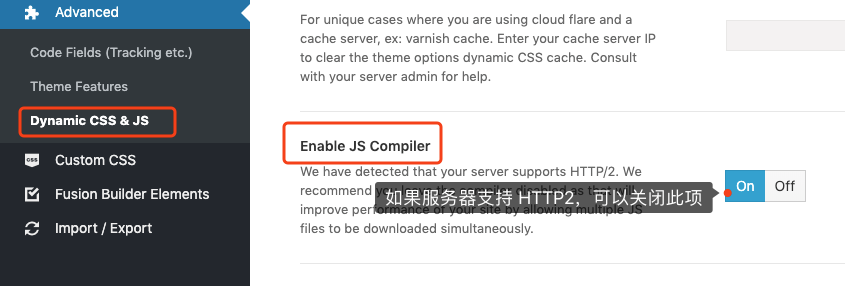
Note: Turning this off may result in lower scores from PageSpeed or other site-speed testing tools because they are not yet optimized for HTTP 2, not because the site actually opens slower.
| significance | 20 points |
| operational difficulty | 3 |
5. Deploying the PageSpeed component +30
PageSpeed server component can automatically perform a number of optimizations for web pages (such as JS delayed loading, lazy loading of images, image compression, etc.) to improve the speed of web pages, the deployment of PageSpeed on the server is an optimization initiative with twice the result with half the effort. Because of the space problem, the specific deployment method will not be expanded here, capable friends can refer to the following link to setup https://en.wpcio.com/nginx-pagespeed/If you can't do that, it's okay to ask your server provider or a technical professional to help you set it up.
| significance | 20 points |
| operational difficulty | 5 |
6, the use of CDN separation site static resources
CDN can cache static website resources to servers close to the visitor to help the visitor quickly open these resources.CDN is divided into two kinds of CDN and static resource CDN, of which Cloudflare is a full-site CDN mode, KeyCDN and CDN77 are static resource CDN mode.
For WordPress sites, it is recommended that you use a static CDN, so that static resources such as images, JS, CSS, etc. are accessed through the CDN, while dynamic pages that require PHP generation are still accessed from the source site. This avoids passing unnecessary cookies through the CDN, which may slow down the opening speed.
The CDN setup method is very simple. After getting the CDN address from the CDN provider, refer to the method in the following link to set up the CDN:https://en.wpcio.com/wp-cdn-rewrite-qiniu-colud/
Commonly used CDNs for static resources abroad are KeyCDN, CDN77 and so on.
Domestic commonly used static resources CDN Ali cloud CDN, Tencent cloud CDN, seven cattle cloud storage, and shoot cloud and so on.
| significance | 20 points |
| operational difficulty | 3 |
7. Hosting the video on your own website
Some websites will put some company and product videos, many websites will upload the videos to YouTube first, and then add them to their own websites. Although the videos hosted on YouTube are fast enough to play, when they are put on their own websites, they will load some extra JS, which will slow down their own websites to a certain extent.
If you don't have many videos that you need to put on your website, and your own server has enough traffic, it's perfectly fine to upload the videos to your own website. This avoids loading YouTube's JS, which speeds up the opening of your website.
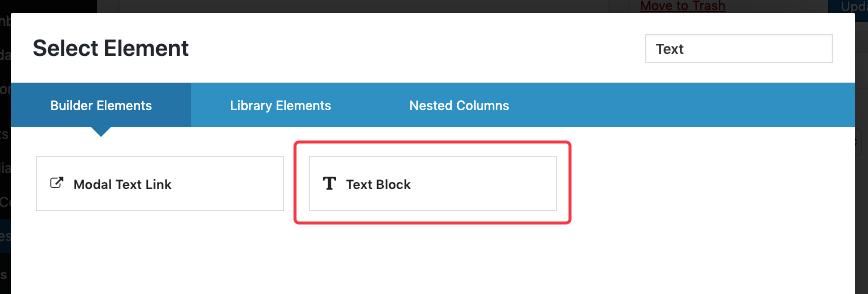
Adding a video to WordPress is very easy, just insert the video into the WordPress text editor like you would upload an image. Let's take the Avada theme as an example. First we add a "Text Block" in Fusion Builder.
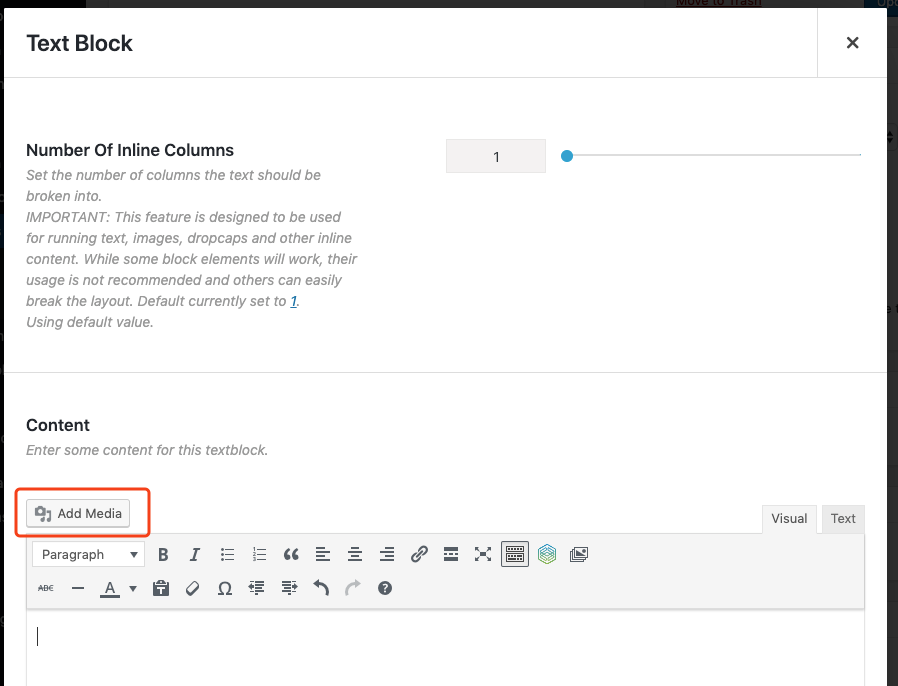
Then edit the added Text Block and click "Add Media" button in the pop-up edit box.
Then just upload and insert the video file like uploading a picture. The effect after insertion is shown below.
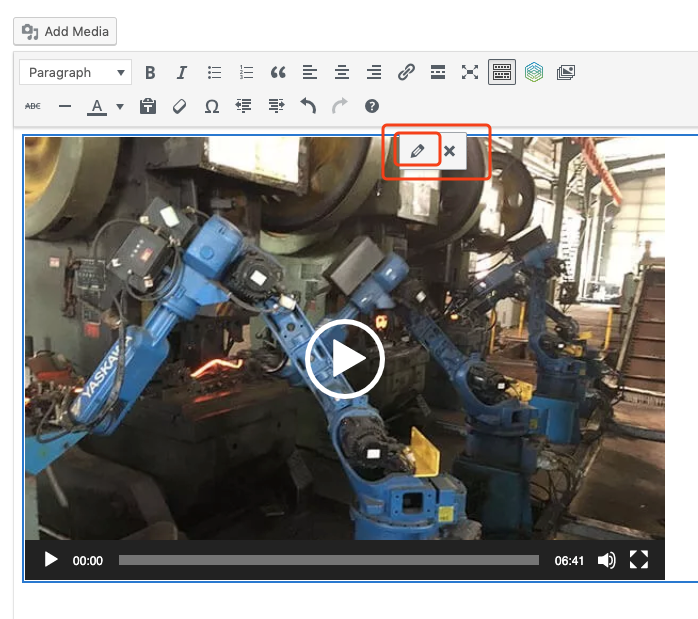
If you need to add a video cover, we click on the video file, a small pencil icon will appear on it (circled place in the picture above), click on this pencil icon. The following interface will appear.
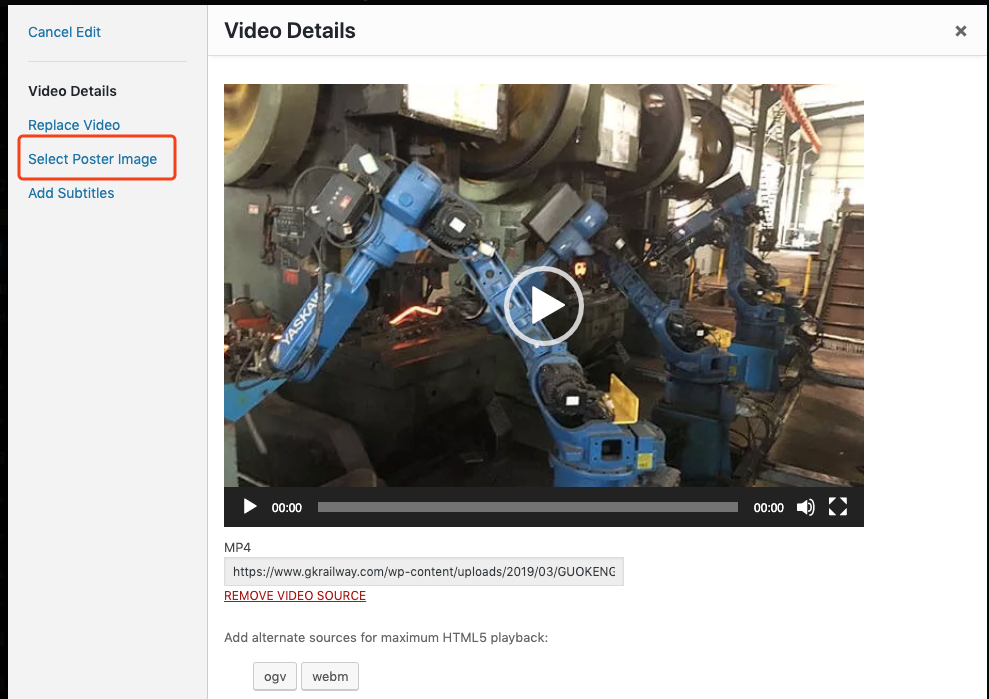
Click "Select Poster Image", select or upload an image in the interface that appears, and then click "Select Poster Image" in the lower right corner again, because this step is relatively simple to operate, here we will not take a screenshot.
| significance | 10 points |
| operational difficulty | 1 |
After the above wave of optimization, you'll find that the site opens significantly faster, and after a day or two, take a look at the traffic stats, bounce rate, and pages-per-view parameters that are sure to see some improvement as well.