

Code highlighting JavaScript code base used in this site: Prism js
Because this site to share a lot of code, so on the page to achieve code highlighting is a must, in the official WordPress to find a lot of plug-ins, are to load additional css and js to the head of the web page, for my kind of optimization control, this is unacceptable, searched a lot of places, and finally found that I love boiled fish introduced to thePrism: Lightweight Javascript Code Highlighting LibraryAt that time, the language supported by Prism is still relatively small, the file compression is only 1.5k, the development to the present, Prism supports languages including html, js, css, php, python and so on more than a dozen kinds of languages.
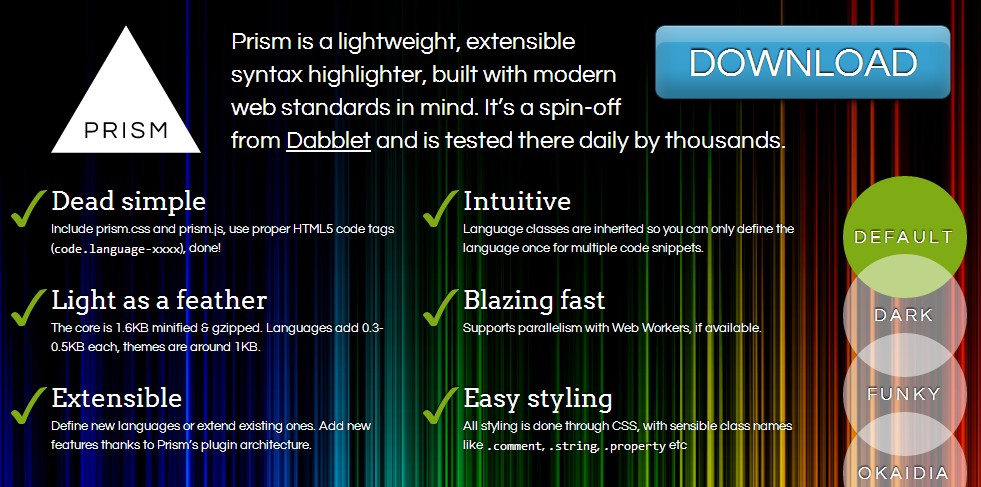
Integrate Prism into the website
To use it, choose the desired language and code highlighting theme on the official website, then download it locally, then unzip it and introduce the unzipped js and css files into the header of the page. In order to reduce two http requests, I of course directly merge the js and css with the rest of the site. Then, when you need code highlighting, just wrap the code that needs to be highlighted directly with code similar to the following.
p { color: red }
Wait, it seems like a bit of a pain in the ass to use, as well as inputting so many things, couldn't it be simpler? The answer is of course. We can use WordPress's Qtag API to add a shortcut input button to the text editor, specifically.
function mxthemes_add_quicktags() { ? <script type="text/javascript
QTags.addButton( 'Prism', 'Prism', "\n', '
\n' ); //Quickly enter [Prism] tags
</script
<?php }
add_action('admin_print_footer_scripts', 'mxthemes_add_quicktags' );I usually need to highlight more php languages, so I added only one php, the button name is Prism (to thank the developer), if you still need to highlight other languages, please add your own shortcut input button.
Tips for use
It should be noted that: Qtags shortcut input button needs to be used in text editing mode, directly paste the code here may be automatically filtered out by WordPress. Directly paste the code in the visual editing mode, WordPress will automatically escape the symbols inside the code, and then switch to the text editing mode, select the code just pasted, and then click the Prism button can be hard.



May I ask, using this, wordpress backend editor text mode to insert some code like html, the pointed brackets are not converted to entity symbols resulting in an error in the highlighting effect how did you solve it.
I just paste it in visual mode first, it will automatically convert to real html code, then add code highlighting and it works.
Awkward, exactly what I did 。。。。 It's just a pain in the ass to switch back and forth.
Direct conversions should be possible with the shortcode, look into it some day.
I don't know if the blogger has solved this html escaping problem yet?
It means that the visualization paste html, code formatting has changed, OCD can not afford to hurt this.