
How to create a media library folder without using a plugin
媒体库文件夹是WordPress 一直缺失的一个功能,对于喜欢让一切东西分类存放整齐的用户来说,把所有媒体放在一起很难受,查找不方便不说,还很容易导致媒体文件的重复上传,浪费服务器的空间。今天,我将向你展示如何在向 WordPress 媒体库上传媒体文件时添加文件夹选择,效果如图。
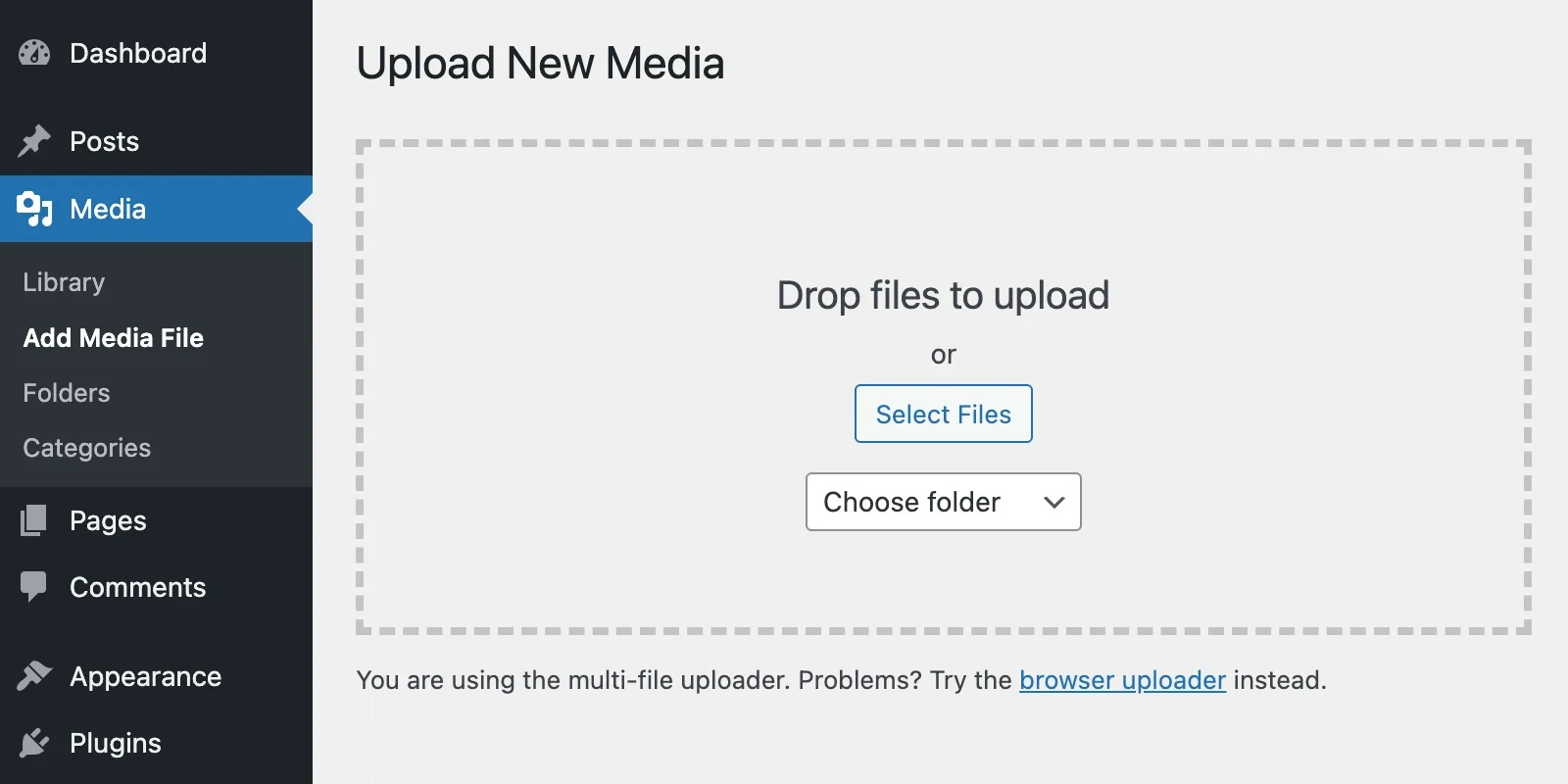
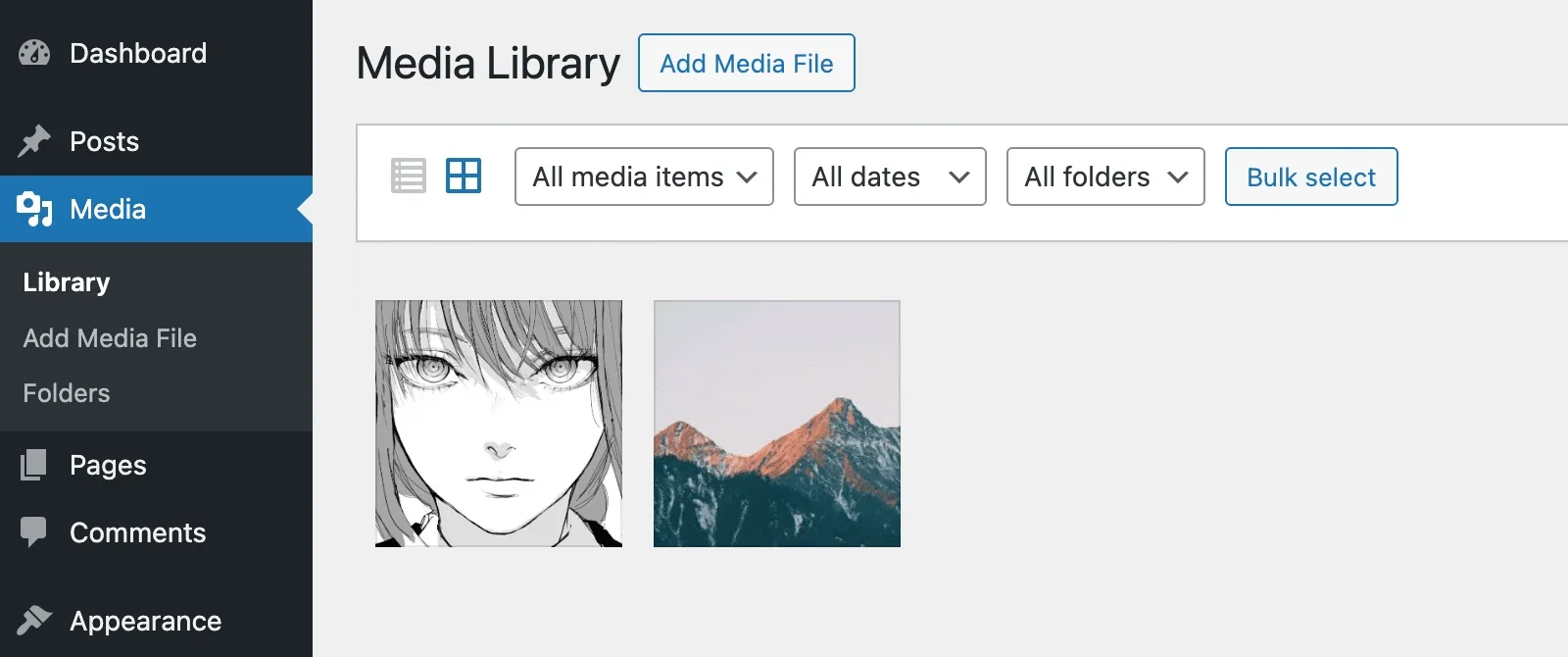
如何在网站上添加媒体库文件夹
目前有两种选择:
- 我们可以在 WordPress 数据库中创建一个自定义表,用它来建立文件夹结构。
- 或者为
附件文章类型注册一个分类方法,并将其也用于文件夹。
在我看来,在这里为媒体文件夹创建一个新的数据库表并不合理,因为分类方法表已经拥有了我们需要的所有数据:名称、标题、父类、计数,而且我们可以使用term_group来按自定义顺序显示文件夹。
另外,如果选择自定义数据库表,我们将需要开发一个管理文件夹的界面,这会为我们带来很多不必要的麻烦。
为附件注册分类方法
很好,我们决定在网站上使用自定义分类法作为文件夹结构。这意味着,是时候在这里使用register_taxonomy()函数了。对了,别忘了把它放在 init 钩子里面。
register_taxonomy(
	'folders',
	array( 'attachment' ),
	array(
		'hierarchical' => true,
		'labels' => array(
			'name'           => 'Folders',
			'singular_name'  => 'Folder',
			'search_items'   => 'Search folders',
			'all_items'      => 'All folders',
			'parent_item'    => 'Parent folder',
			'edit_item'      => 'Edit folder',
			'update_item'    => 'Update folder',
			'add_new_item'   => 'Add new folder',
			'new_item_name'  => 'New folder name',
			'menu_name'      => 'Folders',
		),
		'show_ui' => true,
		'show_admin_column' => true,
		'query_var' => true,
		'rewrite' => false,
		'update_count_callback' => 'wprs_update_folder_attachment_count',
	)
);register_taxonomy()函数的大部分参数取决于你是否要使用标准分类管理界面来管理媒体库文件夹。
例如,如果你决定以自定义方式显示文件夹,你可以跳过整个labels参数,将show_ui设为false(甚至将public设为false)等。
除此之外,我们还需要做以下其中一件事:
- 使用
update_count_callback参数修改标准的_update_post_term_count函数。 - 或者直接使用
update_post_term_count_statuses钩子,允许在计算文件夹中的附件总数时计算继承状态。
在 WordPress 中,默认情况下分类条件中的附件数只能正确计算附加到文章中的附件。
以下是 update_count_callback 方法::
function wprs_update_folder_attachment_count( $terms, $taxonomy ) {
	global $wpdb;
	foreach ( (array) $terms as $term_id ) {
		$count = 0;

		$count += (int) $wpdb->get_var(
			$wpdb->prepare(
				"
				SELECT COUNT(*)
				FROM $wpdb->term_relationships, $wpdb->posts p1
				WHERE p1.ID = $wpdb->term_relationships.object_id
				AND post_status = 'inherit'
				AND post_type = 'attachment'
				AND term_taxonomy_id = %d
				",
				$term_id
			)
		);

		do_action( 'edit_term_taxonomy', $term_id, $taxonomy->name );

		$wpdb->update(
			$wpdb->term_taxonomy,
			compact( 'count' ),
			array( 'term_taxonomy_id' => $term_id )
		);

		do_action( 'edited_term_taxonomy', $term, $taxonomy->name );
	}
}
有趣的是,就在创建这个代码段之后,我发现我们可以使用 WordPress 的另一个标准回调函数,即 _update_generic_term_count,它似乎对附件分类法非常有效。
'update_count_callback' => '_update_generic_term_count',总之,这里也有 update_post_term_count_statuses 方法::
add_filter( 'update_post_term_count_statuses', function( $statuses, $taxonomy ) {

	if( 'folders' === $taxonomy->name ) {
		$statuses[] = 'inherit';
		$statuses = array_unique( $statuses );
	}
	return $statuses;

}, 25, 2 );
像 WordPress 常规术语一样添加、重命名或删除媒体库文件夹
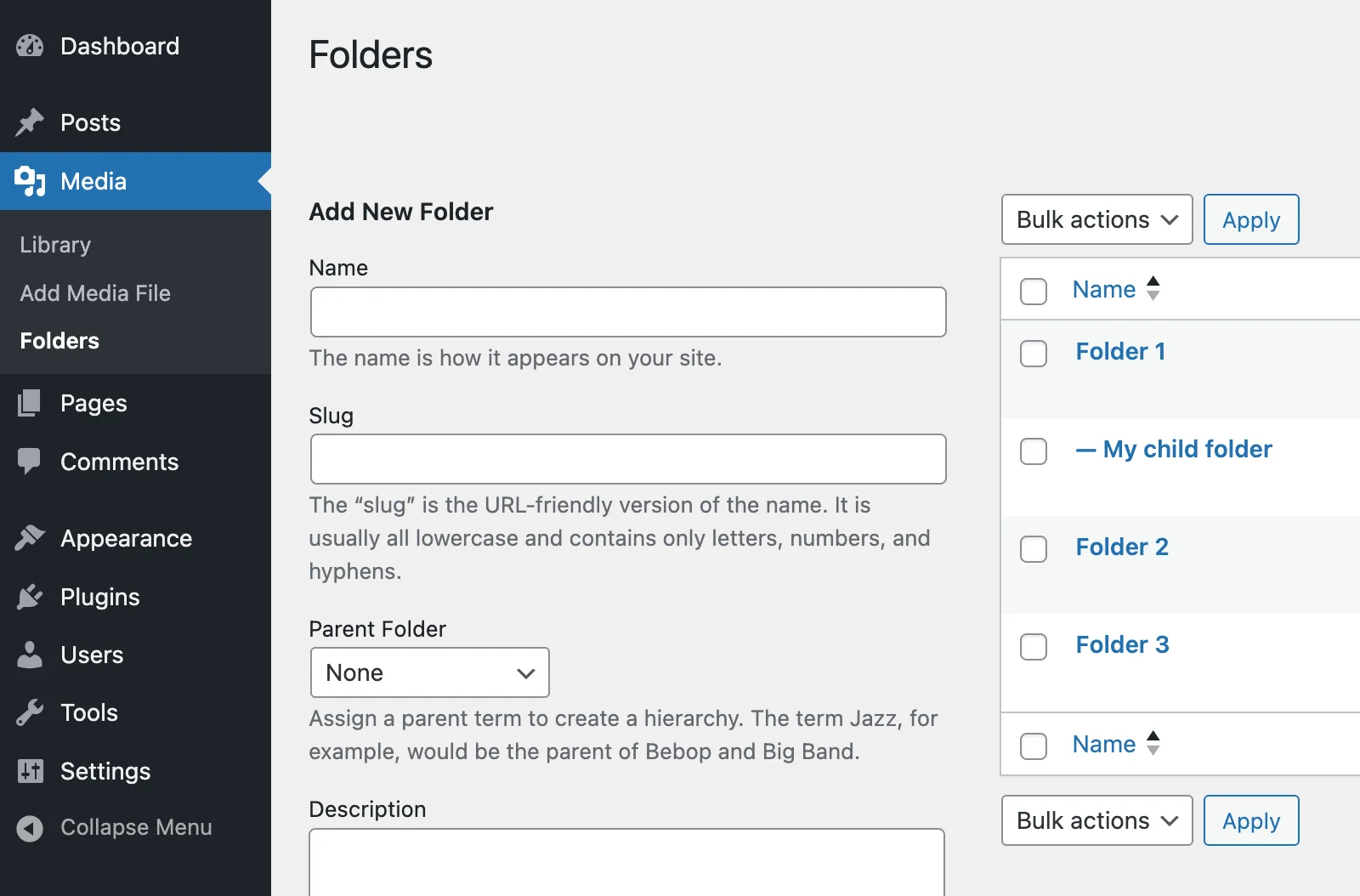
老实说,这里似乎没有什么具体的内容可以写。你只需进入媒体 > 文件夹,就可以像编辑普通分类术语一样编辑 WordPress 媒体库文件夹:
上传媒体时选择文件夹
好了,简单的部分已经结束。现在要做的是更有趣的事情。我们将使用 JavaScript 对 WordPress Plupload 上传器和媒体模式 wp.media 进行大量定制。
这就是我们应该得到的结果:
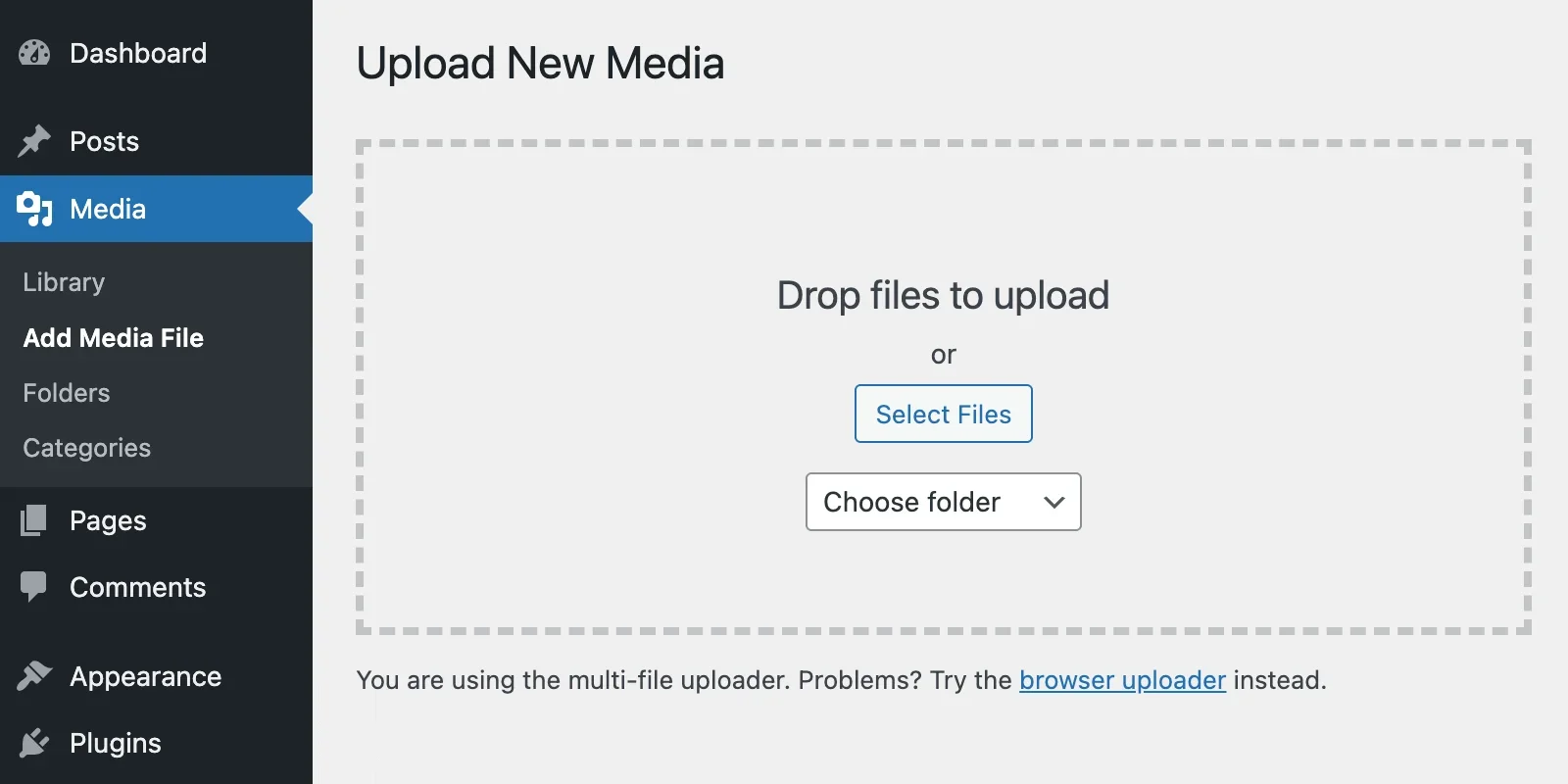
让我们从 PHP 代码段和pre-upload-ui操作钩子开始:
add_action( 'pre-upload-ui', 'wprs_select_folder' );
function wprs_select_folder() {

	wp_dropdown_categories( array(
		'hide_empty'       => 0,
		'hide_if_empty'    => false,
		'taxonomy'         => 'folders',
		'name'             => 'folder_id',
		'id'               => 'folders',
		'orderby'          => 'name',
		'hierarchical'     => true,
		'show_option_none' => 'Choose folder',
	) );

}
JavaScript 代码将根据我们当前执行文件夹选择的页面而有所不同。
媒体 > 添加新页面::
if( $( 'body.wp-admin' ).hasClass( 'media-new-php' ) && 'object' == typeof window.uploader ) {
	window.uploader.bind( 'BeforeUpload', function( up ) {
		const settings = up.settings.multipart_params;
		settings.folder_id = $( '#folder_id' ).val()
	})
}
在 WordPress 媒体模式窗口内,编辑文章时,也不仅限于此:
if( 'function' == typeof wp.Uploader ) {
	$.extend( wp.Uploader.prototype, {
		init: function() {

			let selectedFolder = -1;

			// this part is a little bit tricky, but we need it without a doubt
			$( 'body' ).on( 'change', '#folder_id', function() {
				selectedFolder = $(this).val()
			} )

			this.uploader && this.uploader.bind( 'BeforeUpload', function( up, file ) {
				up.settings.multipart_params = up.settings.multipart_params || {}
				up.settings.multipart_params.folder_id = selectedFolder
			})
		}
	})
}
这里还有一件事:除非你在 setTimeout() 函数(任意时间间隔)内运行,否则很可能不会触发上述代码。
好了,现在该在上传附件时处理 folder_id 参数了。幸运的是,这部分很容易,可以通过 WordPress 的钩子 add_attachment 实现。
add_action( 'add_attachment', 'wprs_add_attachment_to_folder' );

function wprs_add_attachment_to_folder( $attachment_id ) {

	if(
		! isset( $_POST[ '_wpnonce' ] )
		|| ! wp_verify_nonce( $_POST[ '_wpnonce' ], 'media-form' )
	) {
		return;
	}

	$folder_id = ! empty( $_POST[ 'folder_id' ] ) ? (int) $_POST[ 'folder_id' ] : 0;
	if( ! $folder_id ) ) {
		return;
	}

	wp_set_object_terms( $attachment_id, $folder_id, 'folders' );

}
不要忘记验证 nonce。这很容易,因为两处的 $action 操作值相同。
编辑媒体时更改文件夹
这里有 3 种不同的情况:
- 从媒体库的 “列表视图 “编辑媒体文件时,媒体库文件夹会像经典编辑器中的自定义分类法一样显示。在这里我们不需要做什么,开箱即用。
- 从 “网格视图 “编辑媒体文件时,默认情况下不会正确显示文件夹结构。只会显示一个字段,这并不好。而这正是我们需要做的大部分工作。
- 你可以随时创建一堆批量操作,用于向特定媒体库文件夹添加或移除媒体文件。
好了,现在我们的目标是显示如下截图所示的媒体库文件夹结构:
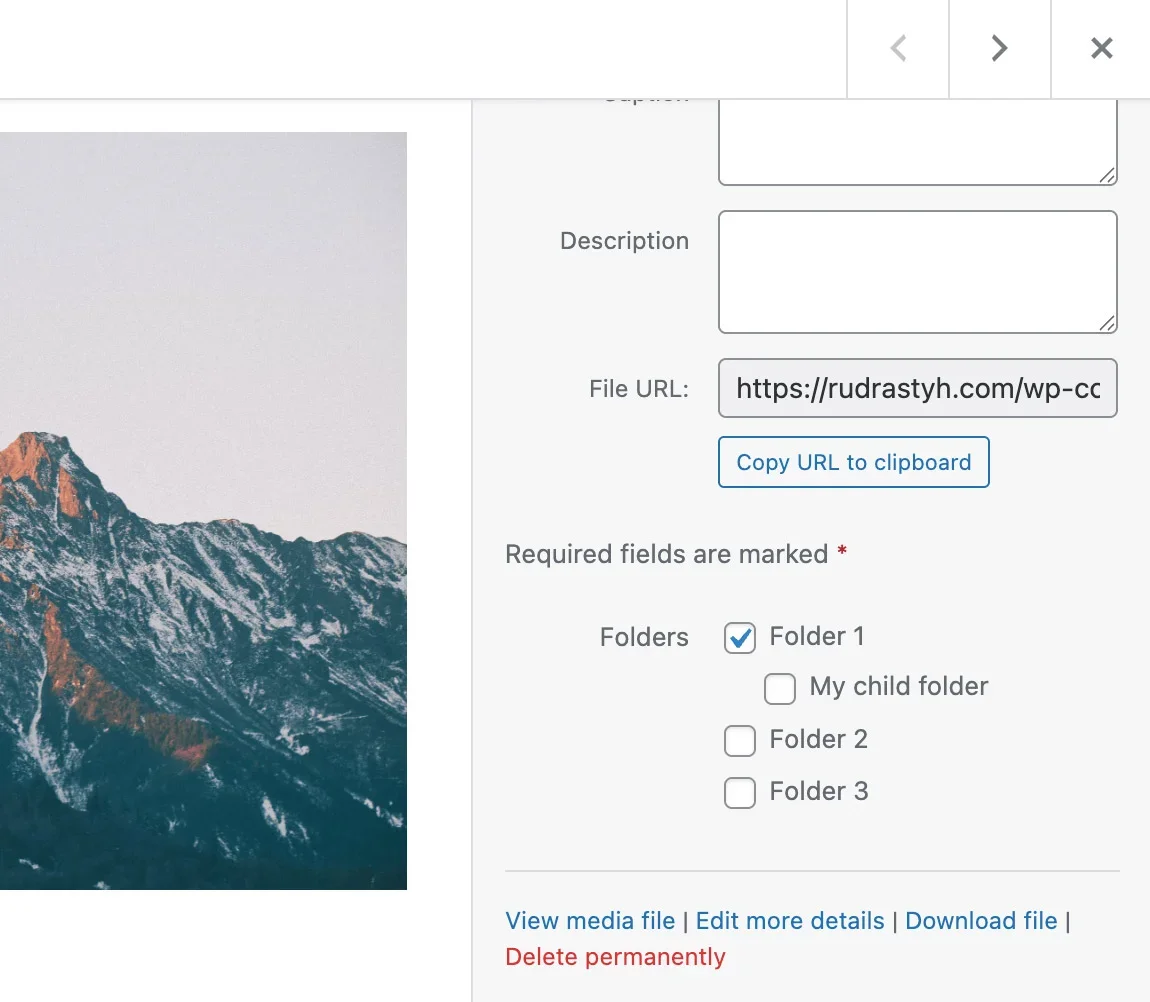
好消息–本章不使用 JavaScript,PHP 代码段如下:
add_filter( 'attachment_fields_to_edit', 'wprs_edit_attachment_fields', 25, 2 );
function wprs_edit_attachment_fields( $form_fields, $post ) {

	// prepare an array for new folder fields here
	$folder_fields = array(
		'label' => 'Folders',
		'show_in_edit' => false,
		'input' => 'html',
		'value' => '',
	);

	$taxonomy_name = 'folders';

	// get the assigned media library folders from the cache
	$terms = get_the_terms( $post->ID, $taxonomy_name );
	if( $terms ) {
		$folder_fields[ 'value' ]  = join( ', ', wp_list_pluck( $terms, 'slug' ) );
	}

	ob_start();

	wp_terms_checklist(
		$post->ID,
		array(
			'taxonomy' => $taxonomy_name,
			'checked_ontop' => false,
			'walker' => new Rudr_Folders_Walker()
		)
	);

	$html = '<ul class="term-list">' . ob_get_contents() . '</ul>';

	ob_end_clean();

	$folder_fields[ 'html' ] = $html;

	$form_fields[ $taxonomy_name ] = $folder_fields;

	return $form_fields;
}

class Rudr_Folders_Walker extends Walker {

	var $db_fields = array(
		'parent' => 'parent',
		'id'     => 'term_id',
	);

	function start_lvl( &$output, $depth = 0, $args = array() ) {
		$indent  = str_repeat( "\t", $depth );
		$output .= "$indent<ul class='children'>\n";
	}

	function end_lvl( &$output, $depth = 0, $args = array() ) {
		$indent  = str_repeat( "\t", $depth );
		$output .= "$indent</ul>\n";
	}

	function start_el( &$output, $term, $depth = 0, $args = array(), $id = 0 ) {

		$output .= sprintf(
			"\n<li id='%s-%s'><label class='selectit'><input value='%s' type='checkbox' name='%s' id='%s' %s %s /> %s</label>",
			$term->taxonomy,
			$term->term_id,
			$term->slug,
			"tax_input[{$term->taxonomy}][{$term->slug}]",
			"in-{$term->taxonomy}-{$term->term_id}",
			checked( in_array( $term->term_id, $args[ 'selected_cats' ] ), true, false ),
			disabled( empty( $args[ 'disabled' ] ), false, false ),
			esc_html( $term->name )
		);

	}

	function end_el( &$output, $term, $depth = 0, $args = array() ) {
		$output .= "</li>\n";
	}

}
文件夹复选框是否正确保存?我也是这么想的。
问题在于 WordPress 希望文件夹字段的值是一个逗号分隔的字符串,但我们只是提供了一个数组。顺便说一下,有不同的方法可以解决这个问题。例如,我们可以使用下面的钩子将wp_ajax_save_attachment_compat()函数改为我们自定义的函数:
add_filter('wp_ajax_save-attachment-compat', 'custom_save_attachment_compat', 0);或者,我们也可以使用 JavaScript 来确保 WordPress 接收到以逗号分隔的自定义分类(文件夹)词条字符串。
差点忘了,还有一点 CSS:
.compat-field-folders .term-list {
    margin-top: 5px;
}

.compat-field-folders .children {
    margin: 5px 0 0 20px;
}

.compat-field-folders .field input[type=checkbox] {
    margin-top: 0;
}
创建过滤器以显示特定文件夹中的媒体
如果你认为我们可以使用 restrict_manage_posts 操作轻松实现这一目标,那么你说对了一半,因为一切都取决于使用的是 “网格 “还是 “列表 “视图。
在 “List “视图中,使用restrict_manage_posts操作钩子就足够了,我们的代码片段将如下所示:
add_action( 'restrict_manage_posts', 'wprs_list_view_filter' );

function wprs_list_view_filter() {
	global $typenow;

	if( 'attachment' !== $typenow ) {
		return;
	}

	$selected = isset( $_GET[ 'folders' ] ) ? $_GET[ 'folders' ] : false;
	wp_dropdown_categories(
		array(
			'show_option_all' =>  'All folders',
			'taxonomy'        =>  'folders',
			'name'            =>  'folders',
			'orderby'         =>  'name',
			'selected'        =>  $selected,
			'hierarchical'    =>  true,
			'value_field'     => 'slug',
			'depth'           =>  3,
			'hide_empty'      =>  true,
		)
	);

}
在 “网格 “视图中,解决方案要复杂得多:
(function(){

	const MediaLibraryTaxonomyFilter = wp.media.view.AttachmentFilters.extend({
		// literally anything here
		id: 'rudr-grid-taxonomy-filter',

		createFilters: function() {
			const filters = {}

			_.each( FolderTaxonomyTerms.terms || {}, function( value, index ) {
				filters[ value.term_id ] = {
					text: value.name,
					props: {
						folders: value.slug,
					}
				}
			})
			filters.all = {
				text:  'All folders',
				props: {
					folders: ''
				},
				priority: 10
			}
			this.filters = filters
		}
	})

	// add the current AttachmentsBrowser into a constant
	const AttachmentsBrowser = wp.media.view.AttachmentsBrowser;
	wp.media.view.AttachmentsBrowser = AttachmentsBrowser.extend({
		createToolbar: function() {
			AttachmentsBrowser.prototype.createToolbar.call( this )
			this.toolbar.set(
				'MediaLibraryTaxonomyFilter',
				new MediaLibraryTaxonomyFilter({
					controller: this.controller,
					model:      this.collection.props,
					priority: -75
				}).render()
			)
		}
	})

})()
如果你想知道 FolderTaxonomyTerms 是什么–它只是一个文件夹对象,我使用 wp_localize_script()和 get_terms() 函数打印了它。
下面就是结果:
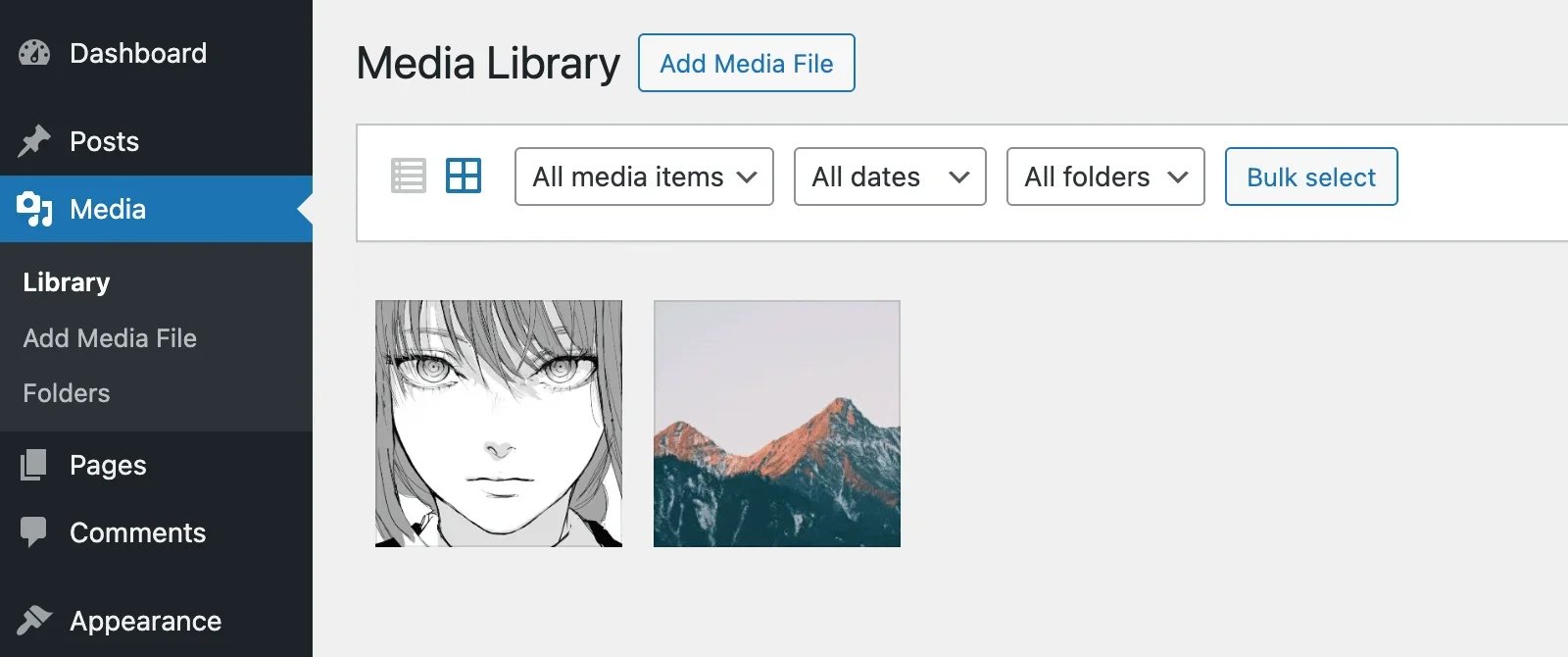
在这段代码的帮助下,过滤器不仅会出现在媒体 > 库页面,还会出现在媒体模态框中,当你想在文章中插入图片时,可以在这里选择图片。