

Instead of using FTP, try using the Rsync utility to upload code to the server!
Rsync is an old Linux application for synchronizing files that can be used to synchronize files between a local computer and a remote server. Compared to FTP, the most important feature of Rsync is synchronization. When you use it, Rsync checks the existing files on the sender and receiver and transfers only the files that have been modified, and it is because of this feature that Rsync is much more efficient than FTP.
Generally, as long as the server supports SSH, it already supports Rsync, which means that most Linux servers can use Rsync, and with a little configuration, we can use Rsync to "upload" files to our server.
Rsync Synchronized File Configuration
If it is used to upload files, we generally use the following command.
rsync -avz --delete /path/to/local/directory/ user@host:/path/to/remote/folder/The first path is the source path and the second is the destination path. If the destination does not exist, the Rsync server will be created automatically after executing the above command. If the first one is the remote path and the second one is the local path, it is equivalent to downloading the file by FTP. If both are local paths, it is equivalent to copying files.
Note: If the source path is not followed by a slash, it is copied as a subdirectory in the source directory to the destination path.
-aArchive mode, which saves all metadata, such as modification time, permissions, owner, etc.-vDisplay details during transmission-zCompressing the file during transmission sends a smaller amount of data, which has a slight impact on performance--deleteDelete files that are not in the local directory at the target location, use with caution to avoid deleting user-generated files
Excluding files that do not need to be synchronized
If there are files in your local directories that you don't want to upload to the server, you can exclude them with the -exclude parameter. In the following command, we exclude the directories .git, node_modules, and wp-content/uploads.
rsync -avz --delete
  --exclude=.git*
  --exclude=node_modules/
  --exclude=/wp-content/uploads/
  /path/to/local/wordpress/ user@host:/path/to/remote/wordpress/
If there are more files to be excluded, the above command may become longer, we can write the paths to be excluded into a file, such as rsync-excludes.txt, and then change to the above command to synchronize the files.
rsync -avz --delete --exclude-from=rsync-excludes.txt /path/to/local/wordpress/ user@host:/path/to/remote/wordpress/rsync-excludes.txt example
.git*
node_modules
/wp-content/uploads/
/wp-content/upgrade/
/wp-content/debug.log
/wp-content/advanced-cache.php
/wp-content/object-cache.php
The leading slash in the above file is relative to the root directory of the folder to be synchronized, not the root directory of the computer; if you omit the leading slash, Rsync excludes these directories or files in all subdirectories.
Looks like a bit of a pain in the ass, but you're worth it.
Compared to brute force FTP, although the above operation may seem a bit troublesome, once we are skillful in using it, it will greatly improve the efficiency of file uploading, especially when the network is slow. And, this article only introduces a simple way to use Rsync by combining differentparametersWe can achieve various kinds of file synchronization needs.





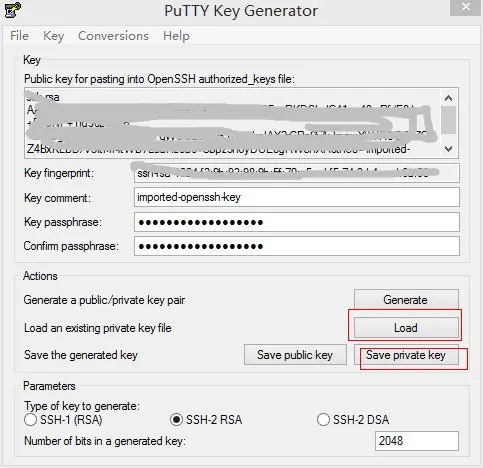
This can be used as a reference, it's easier to use FTP for those who are not familiar with it