How to use images from media library or custom URLs for WordPress user avatars
By default, WordPress uses its own third-party websites “Gravatar“ to create user photos (avatars). However, there are many drawbacks to using a third-party service to make user avatars (especially in this country). In this article, I'm going to show you how to set an image from your media library as a user avatar in WordPress.
In this tutorial, I'm going to focus primarily on user avatars (rather than commenters) and explain why Gravatar has all sorts of drawbacks and how you can host your own user avatars locally.
Where are user avatars displayed?
In WordPress, user avatars are mainly displayed in the following places, and some themes and plugins also call user avatars to display some specific information.
- WordPress Admin Toolbar (Core)
- User Dashboard (Core)
- Avatar Gutenberg block (core)
- Article author profiles (depending on the topic)
- Article meta-title (depending on the topic)
- Membership Plugin
- Account page (e.g. WooCommerce account page)
- A grid showing the author of the site (e.g.Total Theme(the user grid element in the)
Why don't you use Gravatar to create user avatars?
The main reason for not using Gravatar is that it adds extra work to fetch and display avatars from third-party websites. This slows down page loads and reducesGoogle Page SpeedScore. This is mostly a front-end issue when it comes to displaying user avatars on a live site. Of course, speeding up the backend is always beneficial!
However, there are other reasons why you might want to use locally hosted avatars from the WordPress media library instead of Gravatar:
- The site has a slow loading time.
- Page speed scores are low.
- If the Gravatar service fails, user avatars cannot be displayed.
- There is less control over avatar format and resolution.
- Harder to set up and/or update avatars.
How to use media library images as user avatars
Using your own image as a user avatar in WordPress is very simple, and there are several ways we can modify the avatar output, but I personally recommend using thepre_get_avatar_datahooks so that you can use WordPress to add a new hook to theGravatar.com to return your custom URL before making any requests.
Below is a sample code snippet showing how to modify a user's avatar using an avatar from the media library:
/**
 * Return a media library image for a user's avatar.
 *
 * @see https://www.wpexplorer.com/how-to-set-media-image-for-user-avatar-wordpress/
 */
add_filter( 'pre_get_avatar_data', static function( $data, $id_or_email ) {
	// Process the user identifier.
	$user = false;
	if ( is_numeric( $id_or_email ) ) {
		$user = get_user_by( 'id', absint( $id_or_email ) );
	} elseif ( $id_or_email instanceof WP_User ) {
		$user = $id_or_email;
	} elseif ( $id_or_email instanceof WP_Post ) {
		$user = get_user_by( 'id', (int) $id_or_email->post_author );
	} elseif ( $id_or_email instanceof WP_Comment && is_avatar_comment_type( get_comment_type( $id_or_email ) ) ) {
		if ( is_numeric( $id_or_email->user_id ) ) {
			$user = get_user_by( 'id', (int) $id_or_email->user_id );
		} elseif( is_email( $id_or_email->user_id ) ) {
			$user = get_user_by( 'email', $id_or_email->user_id );
		}
	}

	// Change the avatar for the user with an ID of 1 (generally the main site admin).
	if ( $user && 1 === (int) $user->ID ) {
		// IMPORTANT - Make sure to change 'YOUR_ATTACHMENT_ID' with the image ID
		// You want to use for this user's avatar.
		$data['url'] = wp_get_attachment_url( 'YOUR_ATTACHMENT_ID' );
	}

	// Return avatar data.
	return $data;
}, 10, 2 );
The only thing that makes this code a bit lengthy is that we need to parse the$id_or_emailvariable's value to get the user. This is because WordPress allows avatar data to be fetched by ID or email, and there are no global functions that can be used to parse this data.
In this particular snippet, we are only modifying the avatar URL of the user with ID 1. Also, notice how I am using “YOUR_ATTACHMENT_ID“ as the value of the image we are going to grab from the media library. Make sure to change this value to the actual image ID.
How do I find my User ID?
To find the user ID you want to use in your snippet, simply log into your WordPress site and go to the Users dashboard. Click on the user whose avatar you want to change and go to the user edit screen. You can now find the ID in the URL in the following format:your-site.com/wp-admin/user-edit.php?user_id={ID}.
How do I find an image ID?
To find the ID of any image stored on your WordPress site, go to the Media Library and edit the image you want to use. You will find the ID in the URL, as the URL is formatted below:your-site.com/wp-admin/post.php?post={ID}。
How to add settings to the User Edit screen to set a custom avatar image
The snippet I shared above is perfect for making a single edit to a specific user. This is fine for smaller sites where you're only modifying the avatars of one or a few users. On sites with more users, you may want to add a field to your WP admin so you can define user avatars without having to mess with the code.
The following snippet adds a new field called “Custom Avatar“ to the WordPress user editing screen and will modify the avatar when the field is set. The field will allow you to enter the ID of an image from your media library or the full URL of any image you wish to use as a user avatar.
/**
 * Custom User Avatars.
 *
 * @see https://www.wpexplorer.com/how-to-set-media-image-for-user-avatar-wordpress/
 */
class Wenprise_Custom_User_Avatars {

/**
* Constructor.
*/
public function __construct() {
add_filter( 'user_contactmethods', [ $this, 'filter_user_contactmethods' ) ;)
add_filter( 'pre_get_avatar_data', [ $this, 'filter_pre_get_avatar_data' ], 10, 2 );
}

/**
* Hooks into the "user_contactmethods" filter.
*/
public function filter_user_contactmethods( $methods ) {
$methods['custom_avatar'] = esc_html__( 'Custom Avatar', 'text_domain' ); return $methods["custom_avatar"] = esc_html__( 'Custom Avatar', 'text_domain' ); }
return $methods;
}

/**
* Hooks into the 'pre_get_avatar_data' filter.
*/
public function filter_pre_get_avatar_data( $data, $id_or_email ) {
// Process the user identifier.
$user = false; if ( is_numeric(), $id_or_email ) )
if ( is_numeric( $id_or_email ) ) {
$user = get_user_by( 'id', absint( $id_or_email ) );
} elseif ( $id_or_email instanceof WP_User ) {
$user = $id_or_email;
} elseif ( $id_or_email instanceof WP_Post ) {
$user = get_user_by( 'id', (int) $id_or_email->post_author );
} elseif ( $id_or_email instanceof WP_Comment && is_avatar_comment_type( get_comment_type( $id_or_email ) ) {
if ( is_numeric( $id_or_email->user_id ) ) {
$user = get_user_by( 'id', (int) $id_or_email->user_id );
} elseif( is_email( $id_or_email->user_id ) ) {
$user = get_user_by( 'email', $id_or_email->user_id );
}
}

// Check for and assign custom user avatars.
if ( $user && $custom_avatar = get_user_meta($user->ID, 'custom_avatar', true ) ) {
if ( is_numeric( $custom_avatar ) ) {
$data['url'] = esc_url( wp_get_attachment_url( $custom_avatar ) );
} else {
$data['url'] = esc_url( $custom_avatar ) ;
}
}

// Return avatar data.
return $data;
}

}

new Wenprise_Custom_User_Avatars;
The modified results are as follows:
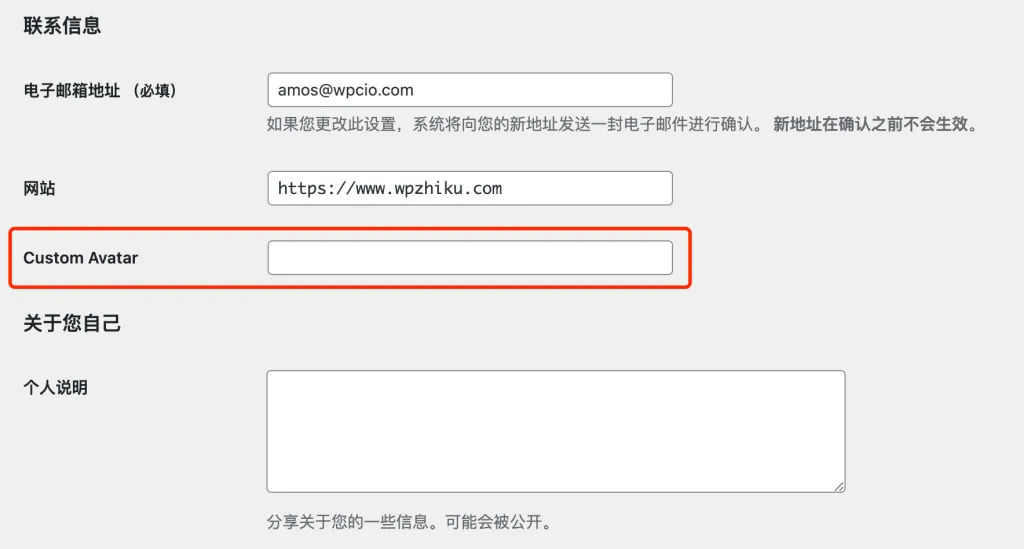
For the purposes of this tutorial, the custom avatar field is a simple text field because WordPress does not have a native media gallery image selection field. If you want, you can load an additional javascript file on your website and add a select button next to the field. This would make things more complicated, and in my opinion, not necessary, which would bloat the code.
summarize
Using your own media library images as user avatars in WordPress is a great idea and highly recommended. Unfortunately, WordPress itself does not have this capability. I believe this is to encourage more people to use their Gravatar service.
Fortunately, it's very easy to set up your own user profile photo (avatar) using a little bit of code, as I showed you above. If you have any questions about the ideas and code in this article, feel free to ask in the comments and we'll discuss it together!