WordPress Block Theme Anatomy: Directory Structure and Files
Have you decided to create a block theme but don't know where to start? In this article, I will take you through the file structure of a block theme. What directories and files can be included in a block theme, which of them are necessary and what they all do.
First, it is recommended that you downloadTwenty Twenty Four Theme, we can create our own block theme based on this theme and modify it according to our needs.
Important Notes: This article assumes that you are an experienced WordPress developer, but are not familiar with block themes. Perhaps you have only used classic themes in the past. I'm also not going to explain further how to create and modify block theme files. The purpose of this article is simply to show you the individual files that make up a block theme and what they are used for.
Block Thematic Structure
A basic block theme consists of a folder with a style.css file and a templates/index.html file. More powerful themes may have a structure similar to the screenshot below.
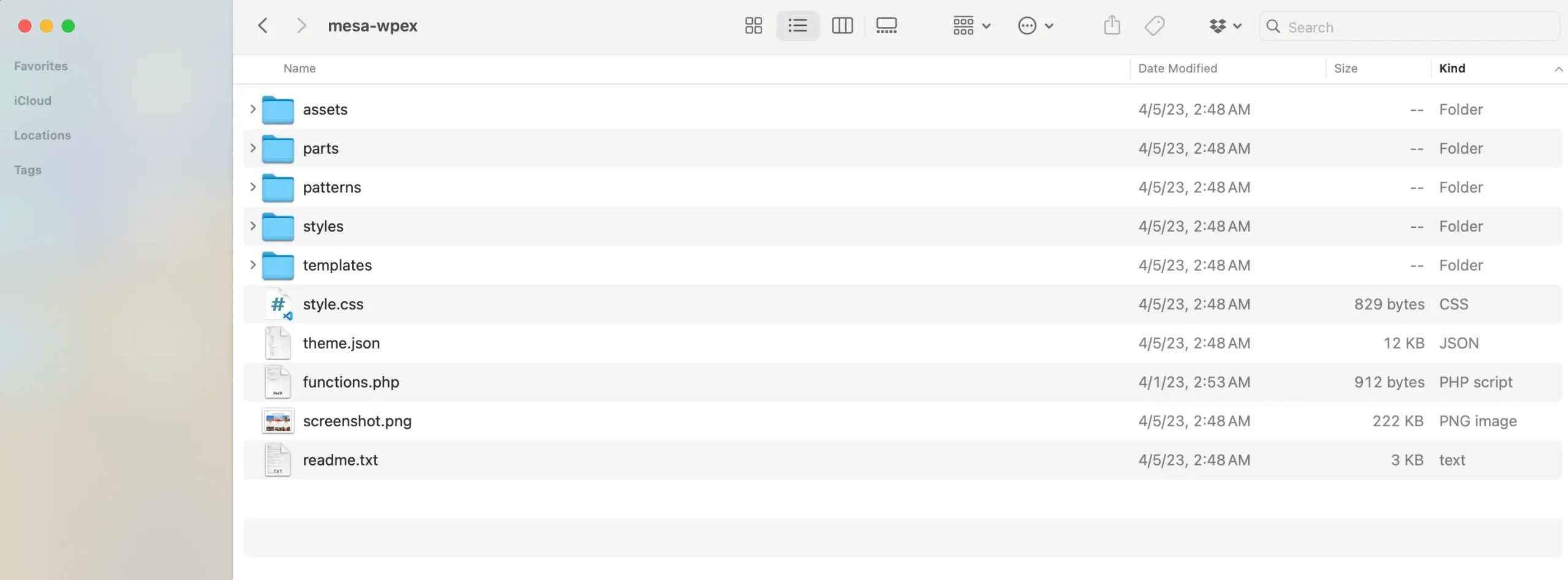
The table below lists all the required and optional folders and files that make up a WordPress block theme.
Required Folder
The block theme must contain the following folders:
| Folder name | instructions |
|---|---|
| templates | This folder contains the main template files. An index.html file is required in this folder. |
Optional Folder
Technically, you can add any folder in the block theme. Here are the optional folders you can add that WordPress will use for specific purposes.
| Folder name | instructions |
|---|---|
| parts | Placement of global template widgets. |
| patterns | Placement of custom block templates. |
| styles | Placement of custom styles (skins). |
Required documents
The following two files are necessary for a basic WordPress.
| filename | instructions |
|---|---|
style.css | This file contains the theme's “header”, which provides WordPress with information about the theme, such as name, description, version, etc. We can check the officialstyle.css documentationto learn how to set up the file correctly. |
templates/index.html | This is the main document which will be used to display archives, articles or pages if no other template is available. |
Required files for WordPress.org repository
If you intend to upload the block theme to the WordPress repository, you need to include the following files in the block theme.
| filename | instructions |
|---|---|
readme.txt | This file provides WordPress with theme information such as descriptions, installation instructions, acknowledgements, licenses, copyrights, changelogs, and more.The WordPress.org repository doesn't have any documentation on the theme readme.txt file, but it is related to theThe readme.txt file for the pluginEssentially the same. |
screenshot.png | This file is a WordPress dashboard page “Appearance”>”Theme “A screenshot is shown below. Even if you're not creating a theme for the WordPress.org repository, I recommend you include this file because it looks better than a blank square. |
Optional documents
Technically, any file or folder can be added to a block theme, so keep that in mind. However, you can add some specific folders and files to the block theme for various tasks.
| filename | instructions |
|---|---|
rtl.css | You can add an rtl.css file to your theme that will automatically load if the site's language orientation is right-to-left. Now, you shouldn't need this file because you can write orientation-aware CSS with modern properties. e.g. use margin-inline-end instead of margin-right. |
theme.json | This file is used to define global settings and styles for block themes. Although this is an optional file, you may create one for each block theme. See theThe official theme.json documentation。 |
functions.php | This file is always loaded and can be used to add PHP code to the block theme. You can also include other PHP files in this file. In a simple block theme, you may only need to use this file to bring in the actual CSS if it is contained in the style.css file (not if your style.css file is only used to define theme information). |
templates/{file-name.html} | We mentioned above that the templates/index.html file is required, but we can also add other files to the templates folder to define the layout of different parts of the site. |
parts/{file-name.html} | In the parts folder, you can include the HTML file to register theBlock template section. These templates can be used in other templates and can be modified globally in the site editor. In the basic block theme, you might include parts/header.html and parts/footer.html. |
patterns/{file-name.php}. | If you want to create reusable template blocks (a.k.a.paradigm), you can place a file for each pattern in the patterns folder. Note that patterns are PHP files, not HTML files. |
styles/{file-name}.json | You can register “skins” for themes by placing JSON files in the styles folder. Each file is encoded in the same way as the theme.json file and allows you to make any changes to the skin. |
List of Block Theme Template Files
When creating a block theme, you won't have just one templates/index.html file. You will need to create different layouts for different parts of your website. Below is a list of different template files you can add to a block theme.WordPress will automatically select and display the appropriate template based on the pages visited. Block ThemeTemplate inheritance rulesAs with the Classic theme, it should be easy to grasp for developers familiar with developing classic themes.
We can add the following template files to the block theme'stemplatesfolder to modify how sections of the site are displayed.
| filename | instructions |
|---|---|
home.html | The file used for the “Home“ page. In WordPress, the ”Home“ page is the page that displays the latest posts. So, if you are using a static home page with the“Settings” > ”Reading “defines the article page, then the file will be used for article pages, not static pages. |
singular.html | File used when viewing single posts (standard and custom). This is an alternate file to the single.html file or single-{post_type} file. |
single.html | File used to display individual articles. |
single-{post_type}.html | View the files used for a specific custom article type article. |
archive-{post_type}.html | View the files used when archiving article types. This archive page only exists if the custom article type has_archive parameter is set to true. |
page.html | Files used when viewing standard pages. |
category.html | View files used when archiving a single category. |
tag.html | View the files used when archiving individual tags. |
author.html | View the files used by the author for archiving. |
date.html | Show files used when displaying date-based archives (such as site.com/2024/). Displaying these archives is generally recommended for search engine optimization reasons. |
archive.html | A file used to display a categorized, labeled, or dated archive (if a more specific archive of the above does not exist). |
search.html | File used for the search results page. |
attachment.html | Files used when viewing individual attachments such as images or videos. For search engine optimization reasons, it is recommended to disable these archives. |
image.html | The file used when displaying the single image page. This file will overwrite the attachment.html file. |
404.html | The file used when displaying the 404 error page. |
The block theme is very simple!
As you can see, there are very few files required to create a block theme, but there are a lot of optional files. The block theme files and template structure is actually very simple to understand. Hopefully, if you're a bit lost, this guide will help you.
If you have any questions or problems, let me know in the comments below.