Unleash the power of theme.json: Customize WordPress themes like a pro!
As the WordPress ecosystem continues to evolve, WordPress developers have more control than ever before. Full Site Editing (FSE) gives all users the opportunity to create themes from scratch, especially when using thetheme.jsonDocumentation.
Developers can also take full advantage oftheme.jsonfile, which allows for fine-grained customization of WordPress themes without the tedious complexities of a more sophisticated programming language.
In this tutorial, we will exploretheme.jsonThe role of the file, including how it relates to the full website editor. By the end, you'll understand how to use its features to create modern, high-performance websites, regardless of your development skills.
Introducing the theme.json file
theme.jsonThe core of the file is a configuration file that defines the settings and styles of the WordPress theme. It uses JavaScript Object Notation (JSON), which is structured data with key-value pairs to make it easy to write code.
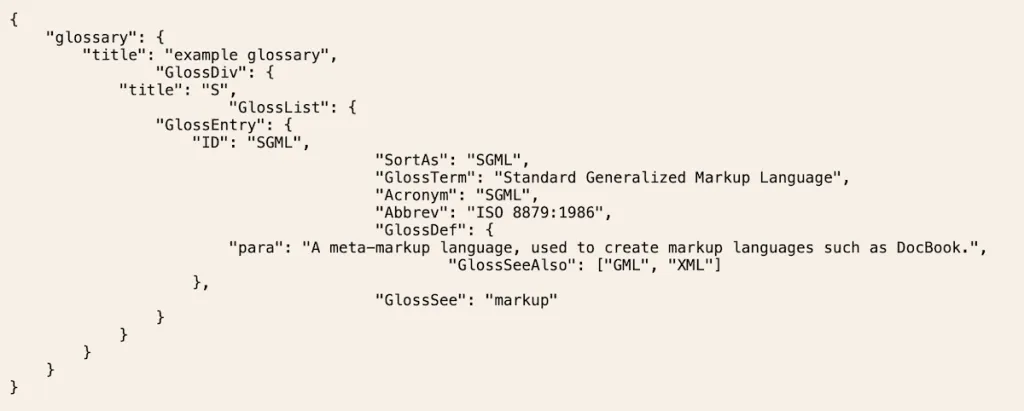
theme.jsonDocumentation is the key to controlling all aspects of the theme, including color palettes, typography settings, layout options, styling of each block, custom CSS properties, and more. We'll cover these aspects in detail in this article.
While these changes and don't sound like revolutionary improvements, thetheme.jsonis important for the future of WordPress development, and we'll explain why in the next section.
Why is theme.json relevant to WordPress theme development?
The typical approach to developing themes and creating plugins for WordPress usually revolves around editing template files with PHP, using functions.php files, and other technical tasks.
theme.jsonThe document marks a major shift, especially in terms of developing themes. There are several reasons for this:
- This file is a single, organized location for defining theme settings and styles. This reduces the need for scattered CSS and PHP files.
- 在
theme.jsonThe centralized declaration of styles and settings in thejQuery and other frameworksThis helps to improve WordPress performance compared to. - You have more control over the styling of your site and individual blocks than ever before, making theme development possible for non-professional developer users.
- As the FSE continues to evolve, the
theme.jsonThe documentation will play a crucial role in how the theme, global styles, and block editor interact.
Combining all these aspects makes it possible to define settings and styles for themes in a standardized way. For people who want to understand and use different themes, using thetheme.jsonwill allow you to create WordPress themes that are more powerful, flexible and user-friendly. What's more, these creations will be aligned with the future direction of the platform.
Where to find the theme.json file
First of all, you can't find it in the “traditional“ or “classic“ threadstheme.jsonFile. To find and use this file, you need a dedicated block theme. Nonetheless, you can create this file in any theme as long as it's running WordPress 5.8 or later.
theme.jsonThe typical location of the file iswp-content/themes/[your topic]. If the file isn't there, you should open your favorite coding editor and create the file as needed. Don't worry about the contents of the file yet, we'll get to that soon.
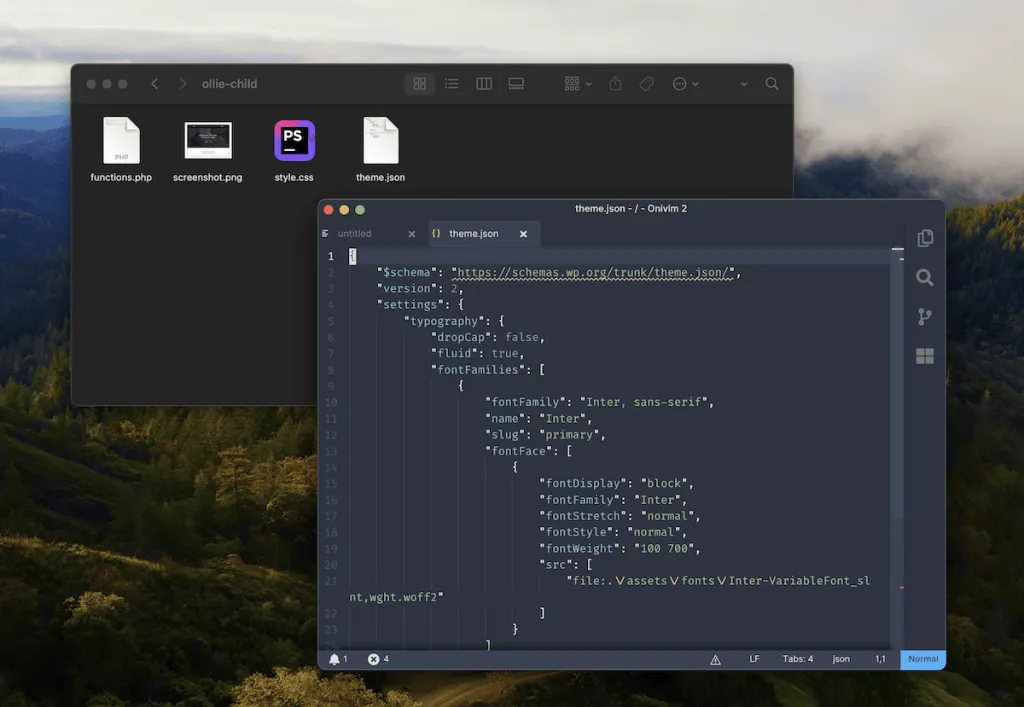
If you need to create a new file from scratch but want to understand the intricacies before customizing your own, check out the default Twenty Twenty- Four theme.
As a block topic, the topic will contain atheme.jsonFile. In the next few sections, we will look at the structure of that file.
Basic skills needed to use theme.json
Of course, not everyone will be able to open a profile and get started, and you'll still need some basic skills and knowledge to build and customize the theme:
- Basic JSON Knowledge: We think you can get up to speed quickly, and familiarity with JSON syntax and structure is essential for reading and editing this file.
- Understanding CSS: You will find that many
theme.jsonObjects and properties correspond to CSS. Mastery of CSS skills will be of great benefit here. - WordPress Block Editor Knowledge: Understanding how blocks work, and their customization options, will help you with your build.
While it is not absolutely necessary, we encourage you to at least understand the key concepts of FSE, which will help you to utilize it in a more effective way!theme.jsonDocumentation. You can also see how your edits will affect the end user's “modifications”. In addition, in some cases, you will still need to use HTML and JavaScript to realize your vision.
Finally, we recommend a couple of technical “add-ons”:
- Code Editor.Choosing a high-quality editor that provides JSON syntax highlighting and validation features will make your workflow easier and more enjoyable.
- Local development environment.utilization DevKinsta maybe Local The tool develops on the theme and allows you to quickly experiment and test changes without disrupting the live site.
With these tools and knowledge, you are ready to start using thetheme.json Customize WordPress themes now.
Understanding the content and hierarchy of theme.json
Obviously, theme.The json file has a structure that you need to understand. It also has a hierarchy, and some unique elements that need further explanation.
This is probably the most complicated part of working with configuration files, but even so, you can easily grasp the concepts involved.
Let's start with the structure and then we'll get into thetheme.json of other elements.
fabric
Given that the file follows the JSON format, you probably already understand the general concept of the structure. First, the entire file object is wrapped in curly braces, as are all other objects in the file. Each object consists of key-value pairs, with single or double quotes for keys and commas at the end of lines.
antheme.jsonThe file needs to be at leastversion、settings和stylesThese three objects:
{
    "version": 2, "settings": {
    "settings": {
      // Global settings go here
    }, "styles": { // Global settings go here
    "styles": {
      // Global styles go here
    }
}
set up和typeThe object is simple, but thereleasesNeeds more explanation. The value will be an integer that matches the version of the API you are using to read the file. The current API version is3Although2versions are also common, but you canMigrating from an older version。
(great) majoritytheme.jsonThe document structure alsoIncludes an architecture. In short, it allows you to use auto-completion in the code editor and provide validation for the file. You can add the following to the top of the file:
{
    "$schema": "https://schemas.wp.org/trunk/theme.json",.

    "settings": {
    },
    "styles": {
    }
}
From here, you'll be inset up和typeAdd various properties and objects to build your file.
hierarchical structure
theme.jsonDocuments follow a hierarchical structure, just the siteset up和typeA level in the overall hierarchy. It is easier to understand if you have knowledge of CSS, as the complexity of the file is similar to that of CSS.
In short, you are interested intheme.jsonThe customizations made don't always show up on the front end of the site. User configuration takes precedence over everything else. This means that in the WordPress Appearance > EditorAny changes made on the screen may override the settings in theme.json and show up on the front end:
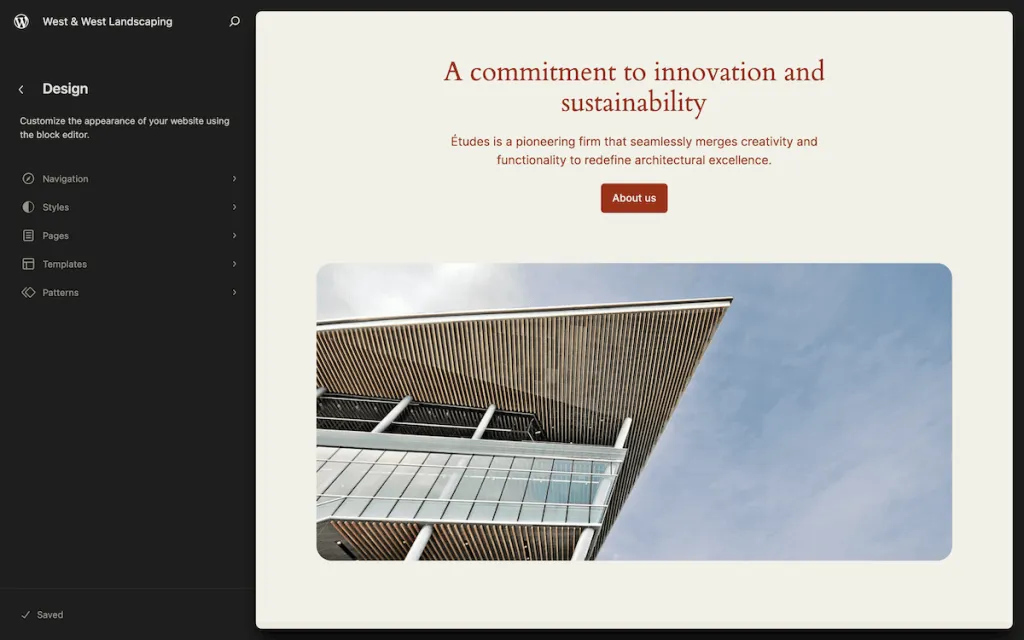
If you use a child theme and include atheme.jsonfile, then it will override all changes except for the site editor. Similarly, anything you define in the parent theme configuration file will override WordPress' default settings and styles. While WordPress does have its owntheme.jsonfile, but it's the one we're focusing on in this post.
While it's not the focus of this post, you can also use theHooks and filtersto override setting values. These dynamic filters allow you to create plugins or themes that change themes, platform settings, and styles.
block syntax
If you go into the WordPress block or site editor, open a post or a page, and then switch code editors, you'll notice a lot of things in the content that look like HTML comments:
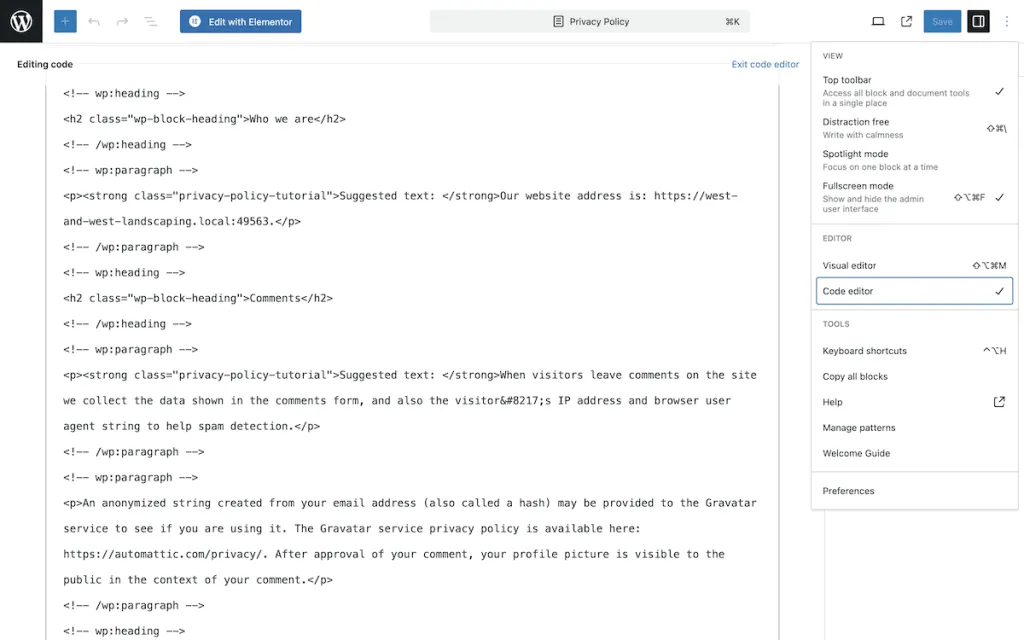
This is because instead of using PHP files, Block Theme uses HTML files along with comments and block markup to create websites. The combination of these elements produces the results you see when writingtheme.jsonThe “block syntax” required for documentation.
For blocks that contain content, such as paragraph blocks, you need to wrap the content:
<!-- wp:paragraph -->
    <p>Content goes here!</p>
<!-- /wp:paragraph -->
In other cases, you only need single line comments or automatically closed comments. For some blocks, you can combine types to create your layout and design. You can also nest these annotations:
<!-- wp:columns -->
<div class="wp-block-columns">
    <!-- wp:column -->
        <div class="wp-block-column"></div>
    <!-- /wp:column -->


    <!-- wp:column -->
        <div class="wp-block-column"></div>
    <!-- /wp:column -->
</div>
<!-- /wp:columns -->
Here, we have created a Columns block using the wrapper annotation. In it, we can start adding HTML to design these columns and include wrappers for the individual columns. This is easy on the front end because you'll often put blocks inside each other.
To find the markers for a specific block, you can add them to theBlock Editor's HandbookFinding it in. However, the easiest way is to add the block to WordPress, open the code editor, and copy the markup from there.
As for how to modify the markup, we will cover that in a later section.
How to combine theme.json with WordPress site-wide editing
By discussing the hierarchy, you will understand thattheme.jsonis an important part of FSE. Together, they provide a comprehensive theming solution for WordPress. For example, the Global Styles Interface is essentially thetheme.jsonA visual representation of the settings.
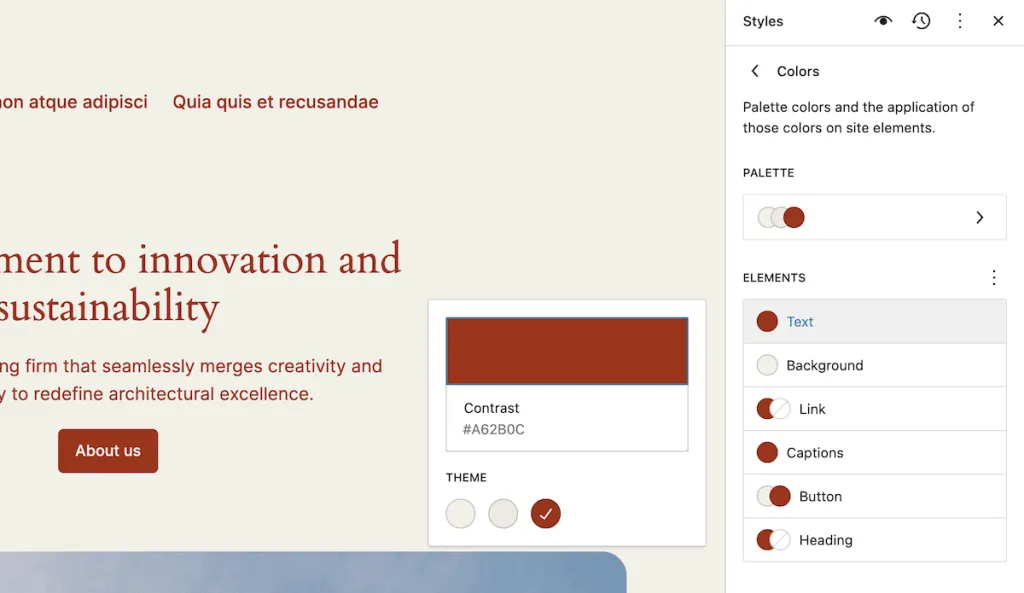
You can modify the settings in the Global Styles panel or in a configuration file and WordPress will update the values accordingly. While the site editor settings take precedence, theTheme.jsonwill be used as the basis for styling the theme itself. For end users, global styling allows them to replace the defaults with their own customizations without code or editing thetheme.jsonDocumentation.
In addition, intheme.jsonThe CSS custom properties defined in the file are also available in the Global Styles interface. This allows users to utilize these properties to create more consistent styling across the site. Additionally, you can define specific block styles and settings and further tweak them in the WordPress panel.
In a nutshell.theme.jsonProvides finer-grained control over settings, styles, and more. It is a developer-level tool that provides a more straightforward and streamlined experience than traditional methods. In contrast, the Global Styles interface gives everyone the opportunity to customize the theme to their liking. As you further develop the theme, you'll see how the two work together to help create site design and layout.
Using theme.json file attributes
Once we understand the basics, we can start using thetheme.json objects and attributes in the file too. We won't be able to cover all the use cases or possibilities. However, by the end of this tutorial, we will be able to create fully functional and front-end looking themes.
set up
settingsAttributes allow you to control the functionality provided in the site editor and how it behaves. This is a top-level attribute and is usually nested at multiple levels.
Once we understand styles and their variations, you'll see that there's some crossover between these options, but both types have a role to play when creating themes.
You can select some of the available attributes:
{
    "version": 3, "settings": {
    "settings": {
        "AppearanceTools": false,
        "blocks": {},
        "color": {}, "color": {}, "color": {}, "color": {}
        "color": {},
        "custom": {},
        "dimensions": {},
        "layout": {},
        "position": {},
        "shadow": {},
        "spacing": {},
        "typography": {},
        "useRootPaddingAwareAlignments": false
    }
}
The officialWordPress Theme Developer Manualcontains references to all of these settings (and styles). However, here is a brief overview of a few important properties that need further clarification:
appearanceToolsThis one.universal propertyIt is possible to enable many othercausality, designed to save time. It allows you to set border options, typographic line height, padding, margins, and more.blocks: While most of your work will be focused on global settings and styles, theblocksAttributes allow you to do this on a per-block basis. We won't go into detail about this concept here, but theTheme Developer ManualThere is information in thetheme.jsonExcellent documentation on this.custom: This unique property has no function, its role is up to you. You can use it to create themes forCustomizing CSS Properties, and it's wide-ranging.useRootPaddingAwareAlignments: Again, this is a complex property that we won't cover fully. It mostly helps you place the theme'sHorizontal Fill Style, is very powerful. Use it if you want full-width items to extend to the edges of the screen while using padding on the root element.
Note that you don't need thetheme.jsonto add any attributes you don't want to use. For example, if you don't want to use theappearanceTools, you can just omit it instead of defining it asfalse。
How to define settings in theme.json
When defining settings, each property has many key-value pair sub-properties. For example, you can create them like thispalette::
{
    "version": 3, "settings": {
    "settings": {
        "color": {
          "palette": [
            {
              "color": "#0073aa", "name": "Primary", {
              "name": "Primary".
              "slug": "primary"
            },
            {
              "color": "#23282d", {
              "name": "Secondary", "slug": "primary" }, { "color": "#23282d", { "name": "Secondary".
              "slug": "secondary"
            }
          ], ...
...
Other properties have simple boolean values, and these can be turned on or off in the site editor:
{
    "version": 3, "settings": {
    "settings": {
        "color": {
            "background": true, "defaultPalette": true, {

            "link": true, "text": true
            "text": true
        }
    }
}
After defining the settings, it's time to introduce styles for them. Now let's work on that.
Style and style variations
settingsdefines the access rights to certain style options, and thestylesattribute on the other hand allows you to define global styles for the theme. Again, this is a top-level property that uses multiple levels of nesting. You can target specific elements, blocks, or even use custom CSS properties.
It's important to define theme styles here so you can access and customize them in the site editor. You can use manyelemental::
{
    "version": 3,
    "styles": {
        "border": {},
        "color": {},
        "dimensions": {},
        "filter": {},
        "shadow": {},
        "spacing": {},
        "typography": {},
        "css": {}
    }
}
However, you won't often use many of these elements as secondary attributes. Instead, some attributes are used primarily for blocks or elements. For example
...
"styles": {
    "blocks": {
        "core/group": {
            "color": {
                "text": "#000000", "background": "#ffff", "color": {
                "background": "#ffffff", "link": "#777777", {
                "link": "#777777"
            }
...
For global styles, you'll be working in the root directory-which is the same as the page's<body>Tag Related. For specific elements, a structure similar to the block can be used, this time using theelementalProperties:
...
"styles": {
    "elements": {
        "button": {
            "color": {
                "text": "#ffffff", "background": "#aa3f33", {
                "background": "#aa3f33"
            }
...
If you look at any changes you've made in the site editor, you'll see that they're already in place. The markup also generates CSS for any styles you create:
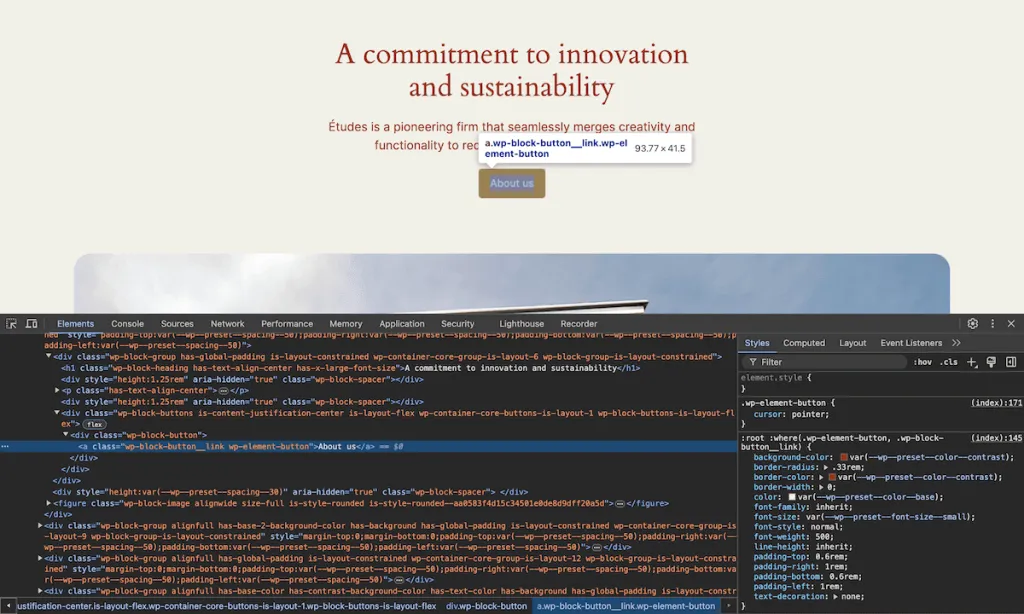
Note that you can also create pseudo-class styles for elements, such as hover and focus styles:
...
"elements": {
    "button": {
        "color": {
            "text": "#ffffff", "background": "#aa3f33
            "background": "#aa3f33"
        },
        ":hover": {
            "color": {
                "background": "#822f27"
            }
...
Application StylesIt goes deeper than that, and that's where the use oftheme.json One of the great advantages of the
Style changes
Before we move on, you'll want to know about the style variations. You can see these different color palettes and typographic styles in the FSE interface:
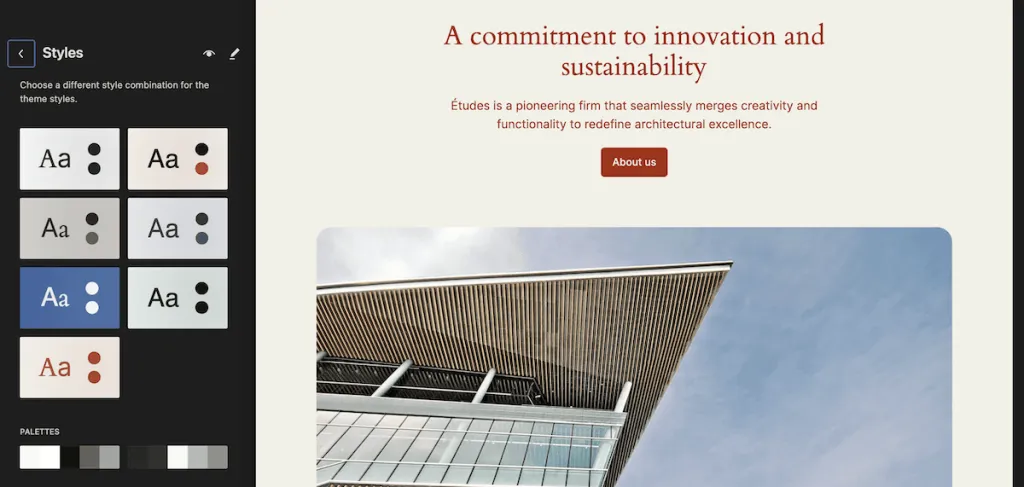
However, these aren't the same things you'll find intheme.json code written in the theme. Instead, you need to create other versions of that file, give them a unique name, and store them in the theme'stypeCatalog:
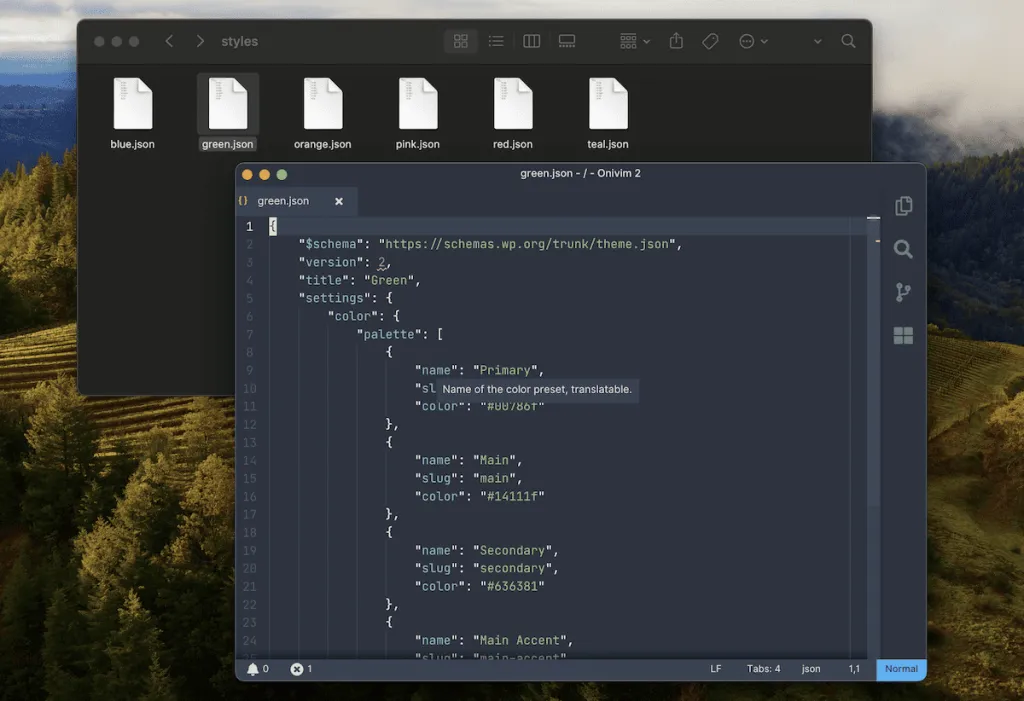
Please note that the title in the markup is unique to each alternative JSON file. However, this is an optional field, but we recommend you use it for clarity and the best experience.
Customized templates and template widgets
As with style changes, thetheme.jsonIt also allows you to register custom templates and related template sections. Registering a markup is very simple:
"customTemplates": [
    {
        "name": "my-template", "title": "My Template", {
        "title": "My Template",
        "postTypes": [
            "page",
            "post"
        ]
    }
]customTemplatesattribute requires three elements to be defined:
name::This will correspond to what you see in the theme template directoryTemplates created in /template/my-template.html。title: This is a readable version of the template name.postTypes: In the absence of a definition, the default is pages, but you can specify an array of article types to which the template applies.
Users can select any of the templates you have registered for on the website or in the block editor:
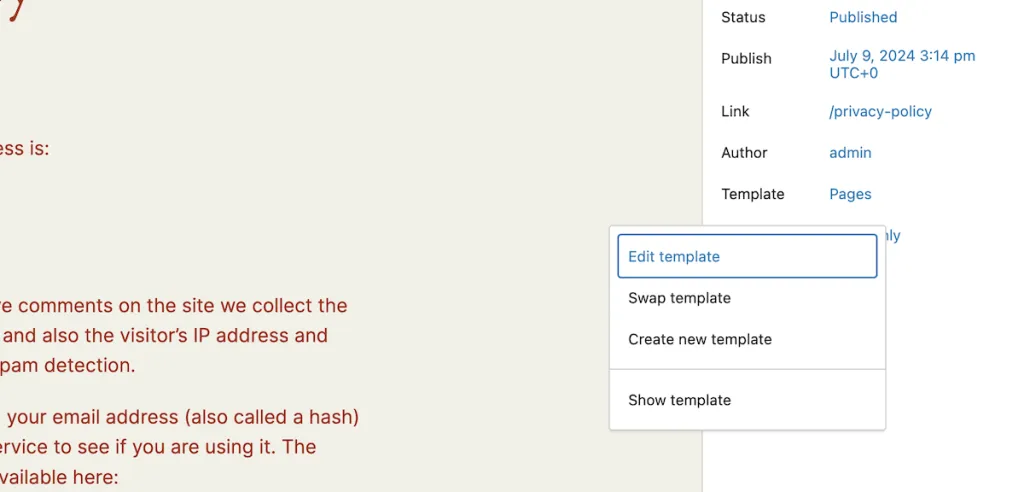
Speaking of template widgets, you don't need to register them, but we recommend that you do, the structure is similar to registering templates:
...
"templateParts": [
    {
        "area": "header", "name": "header", {
        "name": "header", "title": "Header", "title".
        "title": "Header"
    }, ...
...
Here, the name and title are the same as defined for the full template. The region is related to the location where the part belongs to: the default isfooter、footersmaybeUncategorized, but you can assign template widgets to any custom area.
We suggest you also look into howShow these template sections, because they won't show up without some extra coding. Even so, registering them is easy.
paradigm
Finally, let's discuss block patterns. You can find the block pattern in thetheme.jsonThe file bundles any number of patterns using a top-level array.WordPress Pattern LibraryAny of the available patterns can be included in your file:
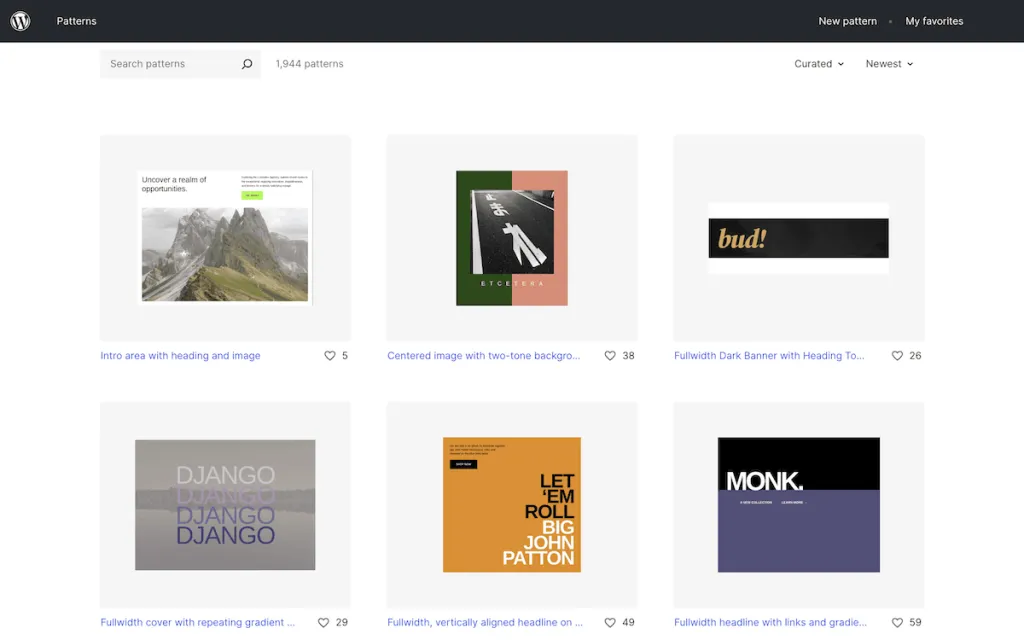
Defining an array is simple: use thepatternsattribute and the title of the associated schema in the library URL:
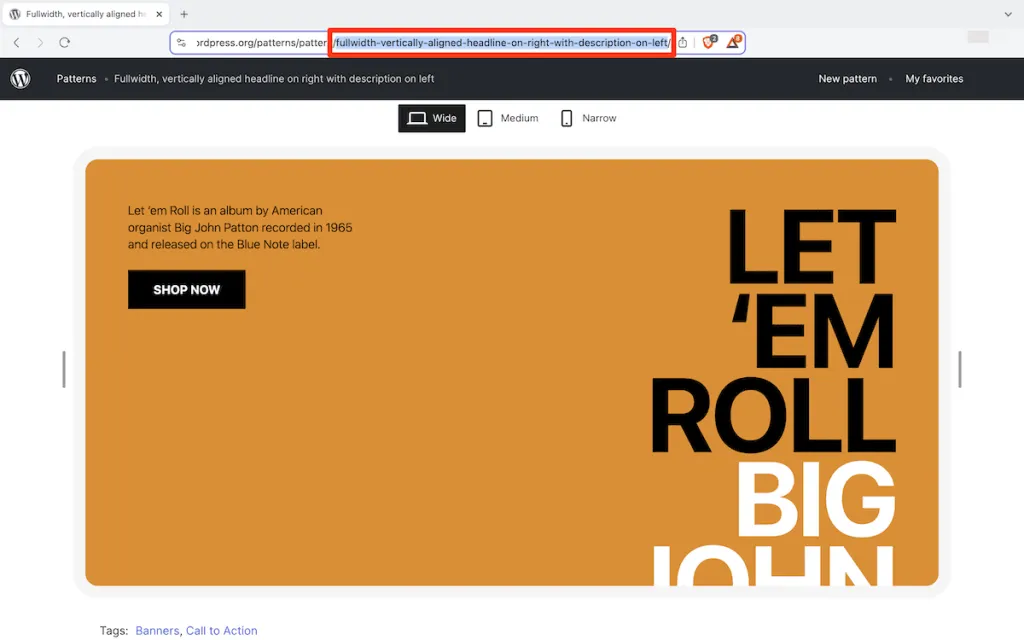
With this title, we can populate theparadigmMarked:
{
    "version": 3, "patterns": [ [ "version": 3, "version": 3, "version": 3, "version": 3, "version": 3, "version": 3, "pattern": [ "version": 3
    "patterns": [
        "fullwidth-vertically-aligned-headline-on-right-with-description-on-left"
    ]
}
You can then select them in the block editor mode catalog:
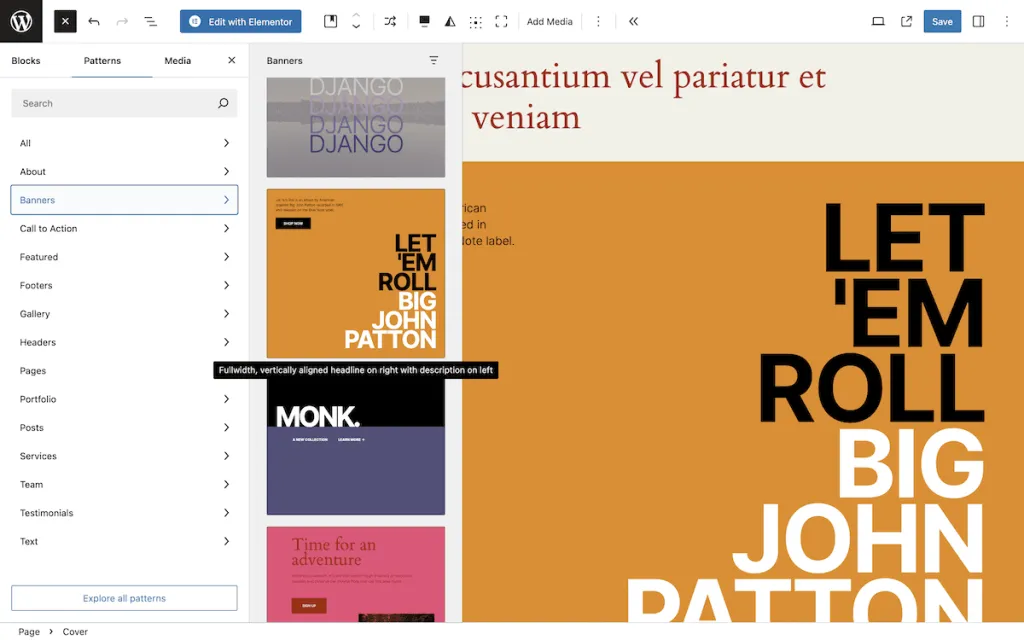
This simple method of bringing pattern library assets into a theme is both convenient and valuable. It's alsotheme.jsonAnother reason why files are quickly becoming the favorite build method for WordPress theme developers.
Workflow for customizing a WordPress site using theme.json
realizetheme.json After developing the key components of the theme, developing a workflow to use it is an important step. It represents a new approach to developing a theme and therefore needs to be approached in a different way than traditional methods.
Our approach is to set the schema URL, select the API version, and define the global settings first. This includes color palettes, typography options, and layout settings. In most cases, activating theAppearance ToolsIt is also beneficial:
"$schema": "https://schemas.wp.org/trunk/theme.json".

   "settings": {
"AppearanceTools": true, "color": {
     "color": {
       "palette": [
         {
           "name": "Primary", "slug": "primary", {
"slug": "primary", "color": "#0073aa
           "color": "#0073aa"
         },
         {
      "name": "Secondary", "slug": "secondary", "color": "#0073aa" }, {
        "slug": "secondary", "color": "#23282d
           "color": "#23282d"
         }
       ]
     }, }
     "typography": {
"font": true, "fontSizes": [ "color": "TP5T23282d" ] }
       "fontSizes": [
         {
           "size": "13px",
           "slug": "small",
           "name": "Small"
         },
         {
"size": "16px", "slug": "small", "name": "Small" }, {
           "slug": "normal", "name": "Normal
           "name": "Normal"
...
Next, you can create custom CSS properties using defined slugs. For example, you might create custom font weights:
...
"custom": {
    "fontWeight": {
        "light": 300,
        "light": 300, "regular": 400,
        "medium": 500,
        "bold": 700
    }, ...
...
Once you have completed the settings, you can specify the style.
...
"styles": {
    "color": {
        "background": "var(--wp--preset---color---base)",
        "text": "var(--wp--preset-color--main)"
    },
...
The next step is to customize the block style, which may account for thethematicA large portion of the document.
...
"styles": {
    "block": {
        "core/separator": {
            "color": {
            "text": "var(--wp--preset-color-main)"
            },
        "typography": {
            "fontSize": "var(--wp--preset--font-size--large)"
            }
        },.
        "core/site-tagline": {
            "spacing": {
                "margin": {
                    "bottom": "20px"
                }
            },
            "typography": {
                "fontSize": "var(--wp--preset-font-size-small)"
            }
        }
        "core/site-title": {
            "typography": {
                "fontSize": "var(--wp--preset---font-size--medium)",
                "fontWeight": "var(--wp--custom--font-weight--semi-bold)",
                "lineHeight": "var(--wp---custom--line-height--none)"
        },
...
Finally, you need to design any custom templates and template widgets andRegister them with thetheme.jsonfilein. This is also the mode for registering any blocks you want to usetime, and create them if necessary.
Should you use Theme.json or WordPress Full Site Editor?
catertheme.jsonand a cross between site-wide editing, you may wonder why you should use one over the other. The truth is that both are applicable to different situations and should be used in combination.
For example, in the following cases, you can use thetheme.json::
- You develop themes and create new themes from scratch.
- JSON is a language you can understand and feel comfortable using.
- You want to define default styles and settings for the theme using a programmatic approach.
- The styles and settings you want to implement require more control than the defaults in the site editor.
Of course, since the FSE is almost an exact replica of thetheme.jsonfeatures, so the last point will seem more niche. Therefore, a full-site editor would make more sense for most users when
- You are a website owner who wants to customize an existing theme.
- You are not familiar with JSON.
- The visual interface is better suited to your customization and development workflow.
- You want quick adjustments without a lot of coding.
In fact, the theme needs a configuration file to define its base. From there, the hierarchy takes over and the site owner can use FSE for further customization.
summarize
theme.jsonA profile is a revolutionary tool for WordPress theme development. It provides a centralized home for your theme settings and styles, enabling you to create more flexible, maintainable and customizable themes.
You will use this file in the WordPress site editor to finalize the site's design. You will use the file in thetheme.jsonThe options set in this file will be the default settings and will be further customized by the end user. The good news is that writing this file is easier than tweaking a series of PHP and CSS files, which is the future of WordPress design.