WooCommerce Create Customized Product Inventory States
In WooCommerce ecosystem, there are some plugins that enable customization of inventory status, which is sometimes very useful for business logic afterward, in this article, we will take you through how to implement this feature by way of code.
For example, we'll create a custom product inventory status called “Inquire” that is similar to “Out of Stock“-customers won't be able to add the product to their carts, but there will be a link to the "Inquire Page" instead of an "Add to Cart " button.
This custom product inventory status will work with standard WooCommerce features such as product filters and third-party plugins such as the My Duplicate SKU Inventory Sync plugin.
Here are a few steps to implement this feature, let's go through them together.
Add custom order status in product settings
First, we need to add a product status option to the product edit page in thewoocommerce_product_stock_status_optionsWith the help of filter hooks, we can easily do this.
add_filter( 'woocommerce_product_stock_status_options', 'wprs_product_statuses' );

function wprs_product_statuses( $product_statuses ){

// We need to add custom product statuses in the following format slug => name
$product_statuses[ 'contact-us' ] = 'Contact us';
// Here we can also remove some of the default product inventory statuses along the way

// Don't forget to return the array of changed statuses
return $product_statuses;
}
Now, we can select a customized inventory status in the Inventory tab of the product settings:
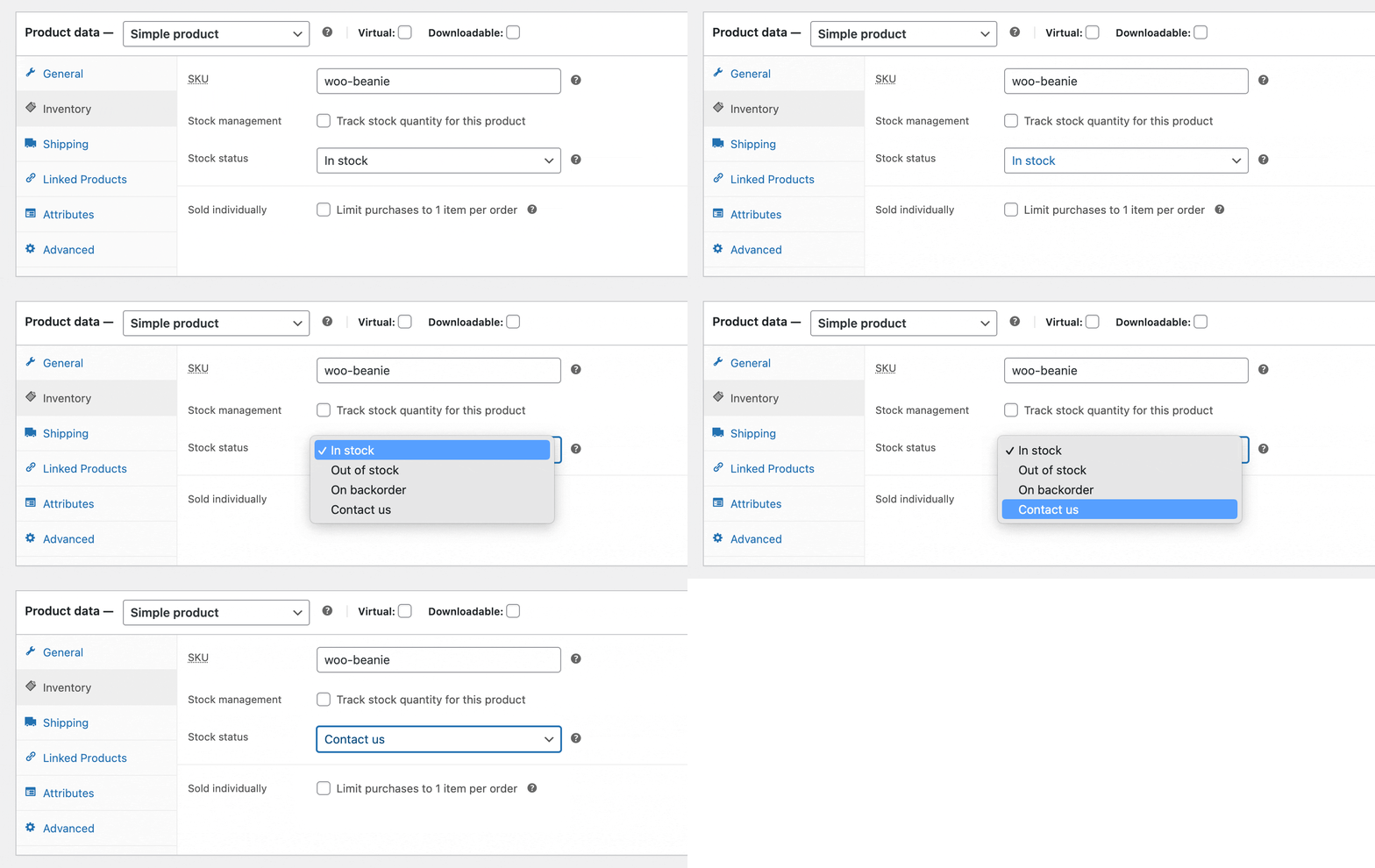
Click directly on the “Update“ button and the product status values will be saved. This also applies to product variants.
Make products with customized product statuses unavailable for purchase
Well, now we have the Custom Product Inventory status, but it works similarly to the “In Stock“ status, so we can buy products as usual, etc.
Since our customized “Request a Quote“ inventory status requires customers to contact the store owner, it is obviously not possible to add a product in this status to the cart and purchase it.
We need to modify this functionality with one of the following two hooks:
woocommerce_is_purchasable- maybe
woocommerce_product_is_in_stock
What's the difference between them?
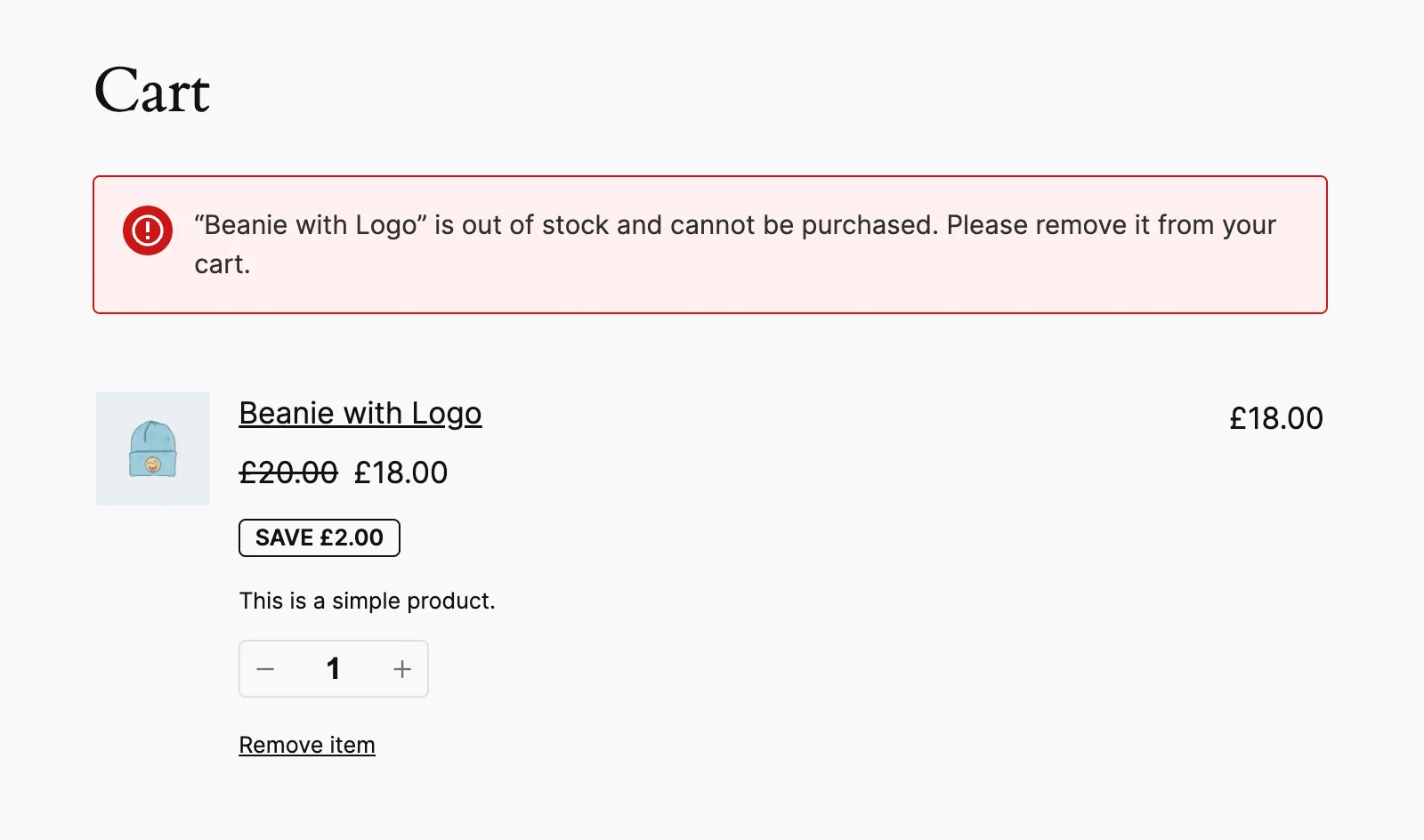
In a nutshell.woocommerce_is_purchasableis a strict version of a hook that assumes the product will never be purchased, and if any customer has the product in their cart, it will be removed immediately when you change the inventory status to “Contact Us“. Howeverwoocommerce_product_is_in_stock The hook assumes that sometimes the product can be purchased and that the customer's product will remain in the cart and they will receive a message like this:
So, depending on your needs, both hooks work in a similar way:
add_filter( 'woocommerce_product_is_in_stock', 'wprs_allow_purchase', 10, 2 );
//add_filter( 'woocommerce_is_purchasable', 'wprs_allow_purchase', 10, 2 );

function wprs_allow_purchase( $allow, $product ) {

	if( 'contact-us' === $product->get_stock_status() ) {
		$allow = false;
	}

	return $allow;
}
Displaying customized information on product pages
Once we're done with theprevious step, the add to cart button and quantity selection form on the product page will be removed, but we need to show some content, right?
add_filter( 'woocommerce_get_availability_text', 'wprs_product_stock_status_text', 10, 2 );

function wprs_product_stock_status_text( $text, $product ) {

	if( 'contact-us' === $product->get_stock_status() ) {
		$text = sprintf(
			'本产品可询价,请 <a href="%s">发送询价</a>', site_url( 'inquiry' )
		);
	}

	return $text;

}
in the end
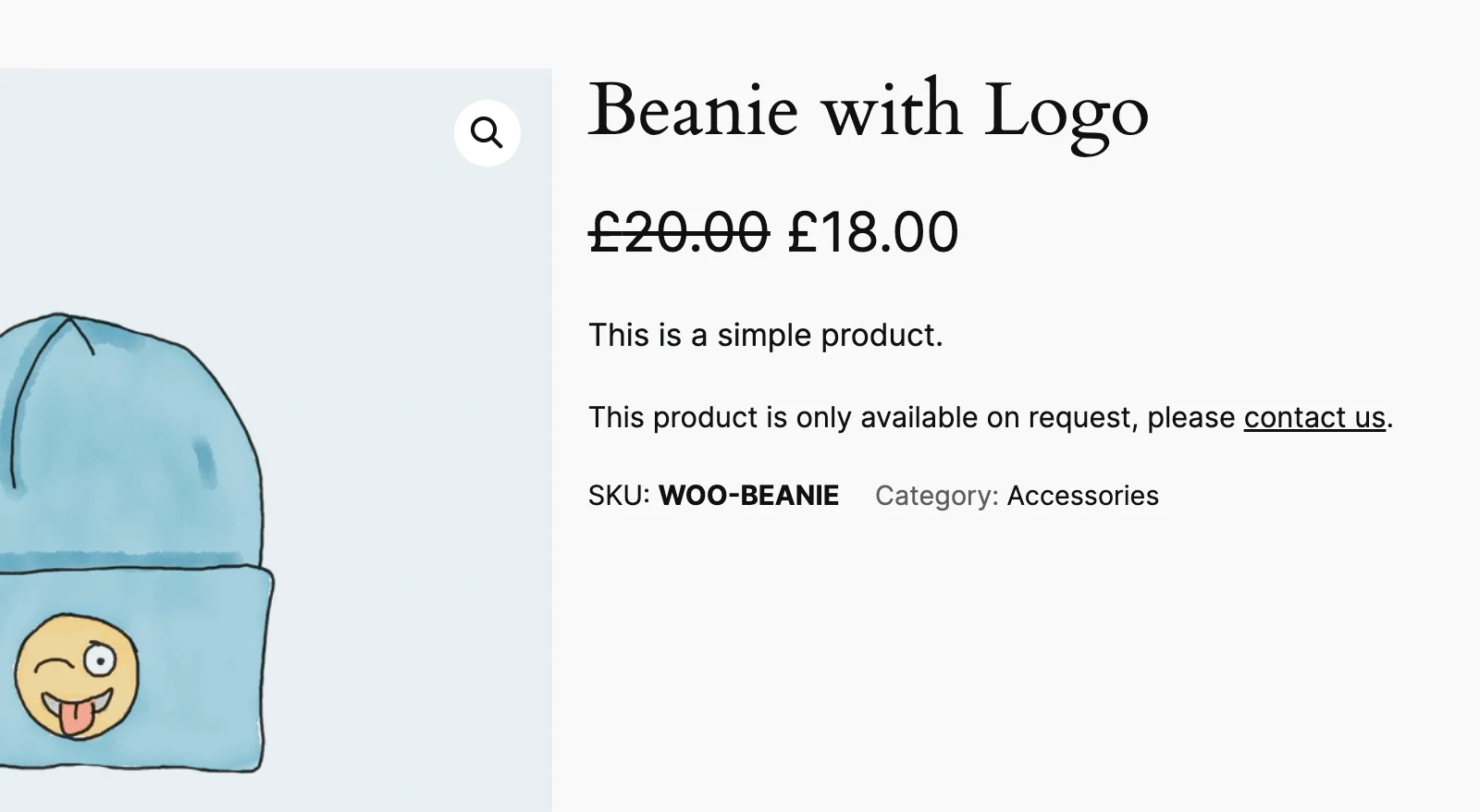
By the way, you can also use hookswoocommerce_get_availability_classIf you want to change the wrapper of this message, you can do so at any time.<p>CSS类。
Change the “Add to Cart“ button on the “Product Details“ page
Here, we can actually do two things:
- For example, we can use the
woocommerce_product_add_too_cart_textThe filter hook changes the text of the “Add to Cart“ button to “Request a Quote”. - We can also use the
woocommerce_product_add_too_cart_urlto change the URL of the button.
Below is the specific implementation code.
add_filter( 'woocommerce_product_add_to_cart_text', function( $text, $product ) {

	if( 'contact-us' === $product->get_stock_status() ) {
		$text = '询价';
	}

	return $text;

}, 25, 2 );

add_filter( 'woocommerce_product_add_to_cart_url', function( $url, $product ) {

	if( 'contact-us' === $product->get_stock_status() ) {
		$url = site_url( 'contact-us' );
	}

	return $url;

}, 25, 2 );
This is what our brand new “Add to Cart“ button looks like:
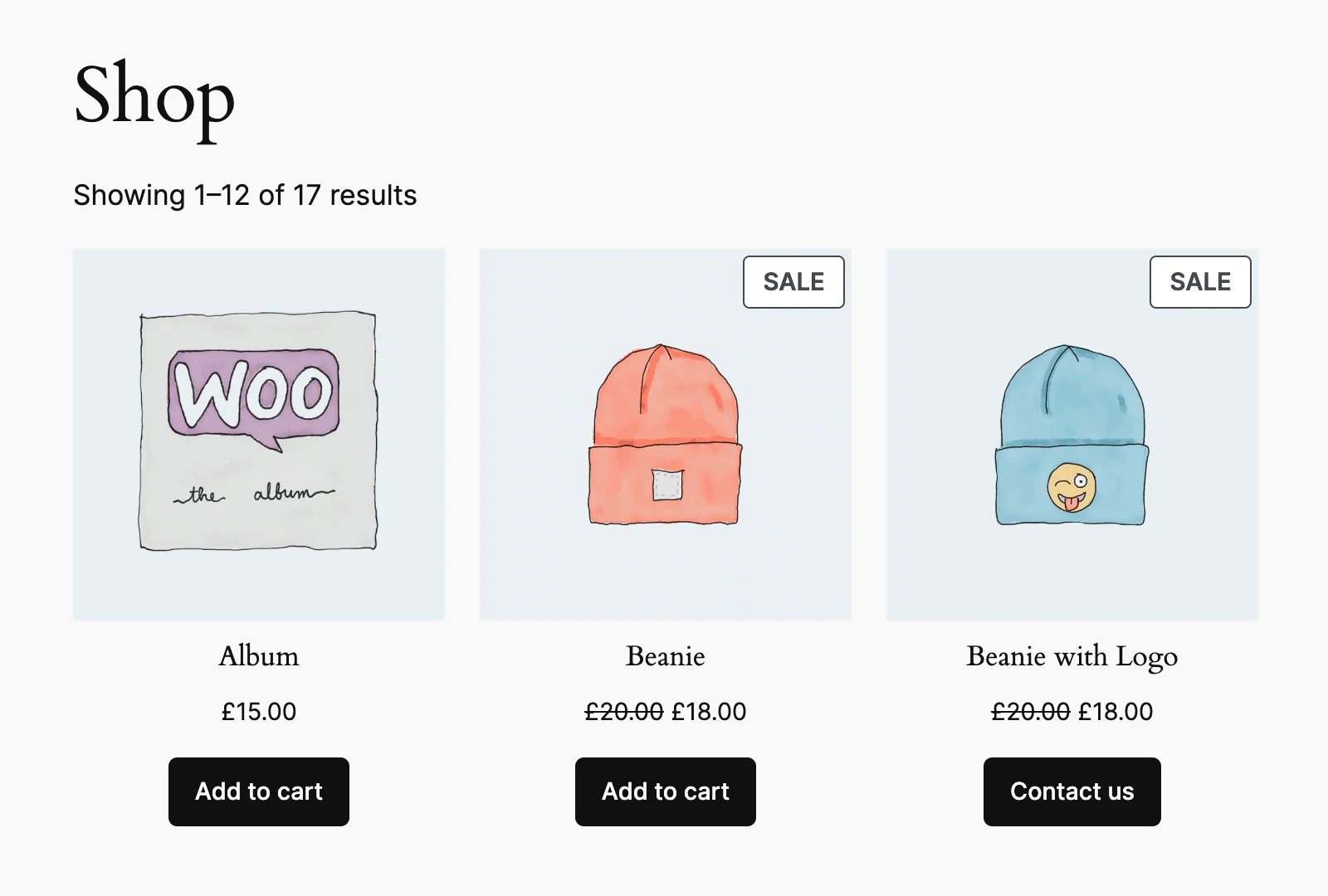
Manage Product List Table
Last but not least, we're going to “Products” in WordPress Admin”>”All Products“ page correctly displays the customized inventory status.
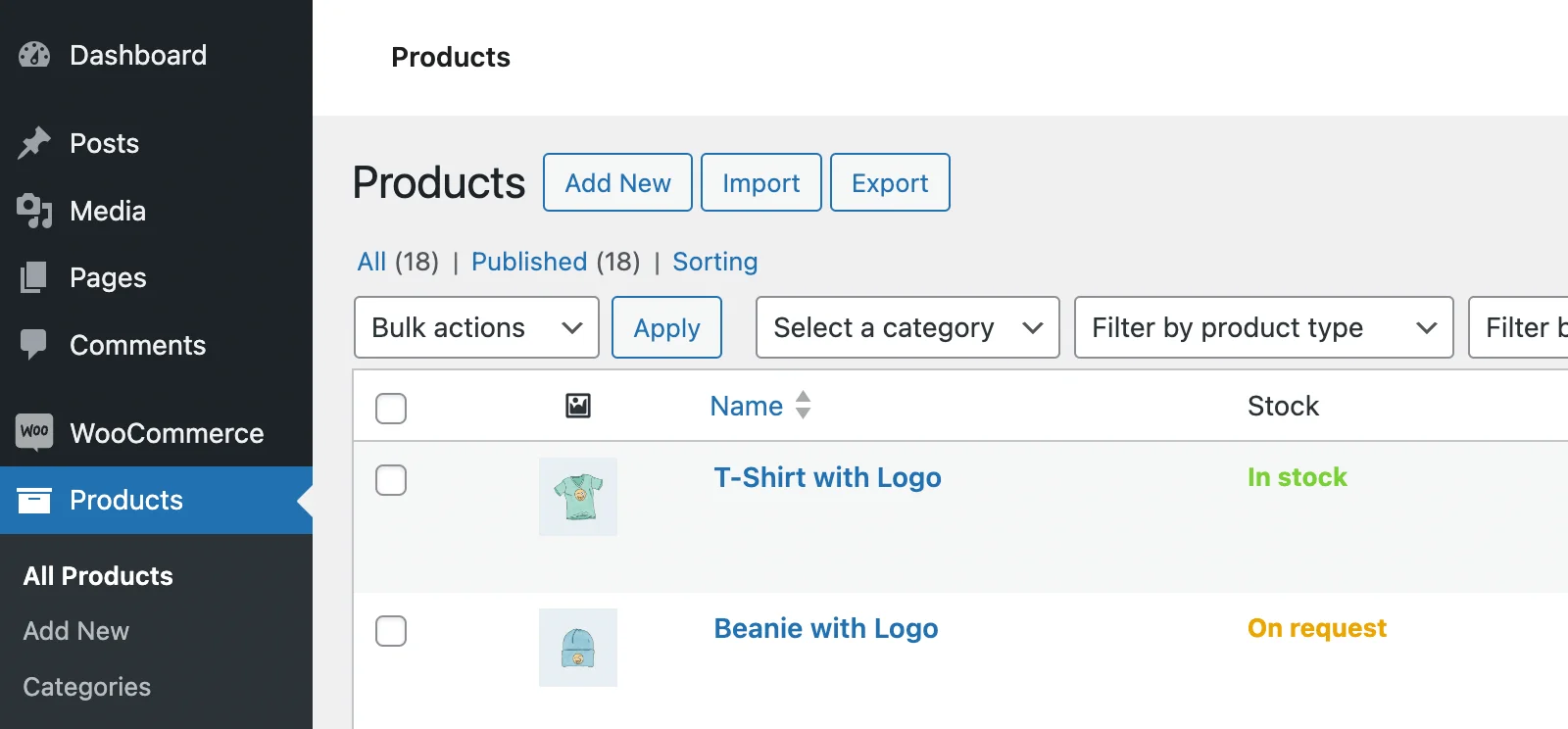
This can also be done with a simplewoocommerce_admin_stock_htmlFilter hooks to achieve this:
add_filter( 'woocommerce_admin_stock_html', function( $stock_html, $product ) {

	if( 'contact-us' === $product->get_stock_status() ) {
		$stock_html = '<mark class="onbackorder">On request</mark>';
	}

	return $stock_html;

}, 25, 2 );
With the above code, we have achieved a simple but complete customization of WooCommerce Inventory Status. Based on the customization of Inventory Status, we can combine it with business requirements to achieve more customization. If you have questions about the code mentioned in this article, please feel free to ask in the comments, we will exchange together.